
How to create an email
.png?fit=max&auto=format&n=tzlUXQ5D4ImeIx2T&q=85&s=62f9c45e1e351584384784978ecb9cd2)
1
Open chat
Open the chat to start creating your email.
2
Select task
Choose the task “Draft email.”
3
Describe email
Describe the email you want to create.
Example: “Create a short follow-up email after a project meeting. Summarize the key points and list the next steps.”
Example: “Create a short follow-up email after a project meeting. Summarize the key points and list the next steps.”
4
Define setup
Define language, tone, and audience, and attach relevant files if needed.
5
Edit email draft
The email draft is created automatically and opens directly in the editor. Adjust it flexibly or collaborate with your team.
6
Open in Outlook or Gmail & send
Open the email in Outlook or Gmail and send it directly.
Tip: Connect Outlook or Gmail
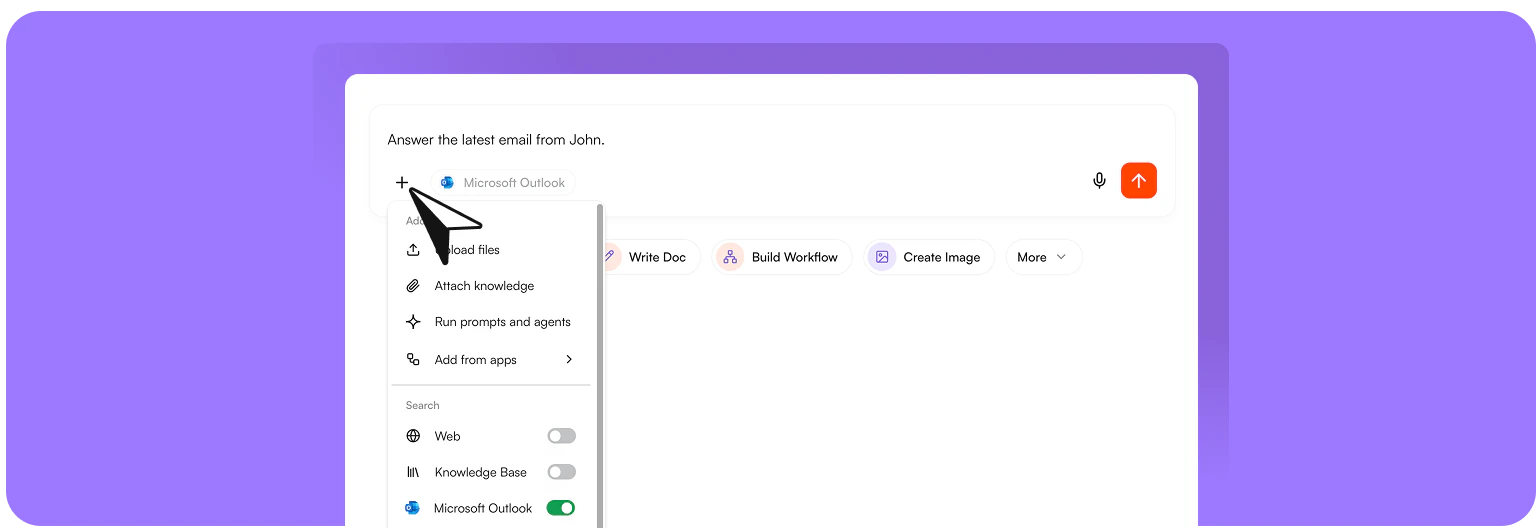
- Open the chat.
- Click the + icon in the input field.
- Click Add connectors.
- Select Microsoft Outlook or Gmail under Apps.
- Click Connect and sign in with your account.
Iteratively improve emails
You can refine your email draft at any time via the chat or directly in the editor. Use AI to adjust, shorten, rephrase, or expand content, and edit text manually or together with your team if needed. Example prompts:- “Make the email more friendly and personal.”
- “Shorten the email to three paragraphs.”
- “Add a clear to-do list for the team.”
- “Make the email more formal for external partners.”
Open and send emails
Once your email is ready, you can open it directly in your email client. Click Continue and choose:- Open in Gmail
- Open in Outlook
Continue working with your emails
Via “Continue”, you can reuse your email content for other purposes and continue working with it:- Create document – Turn the email into a structured document to edit, share, or use in projects
- Create note – Save key points or ideas as a note and expand them further
- Start new chat – Use the email as context to analyze, rewrite, or develop content
- download it as a DOCX file
- download it as a PDF
- share it with your team
- move it to a project
FAQ
How can I use Outlook or Gmail in nuwacom?
How can I use Outlook or Gmail in nuwacom?
Connect your email provider like Outlook or Gmail to make your emails available directly in nuwacom.The AI can then:
- search emails and find relevant content
- automatically summarize content
- create suitable reply drafts
Are my data from connected tools used for AI training?
Are my data from connected tools used for AI training?
No. nuwacom does not use your company data to train AI models. As a GDPR-compliant data processor, nuwacom processes your data only according to your instructions and contractual agreements.
How does nuwacom ensure data protection when connecting Outlook or Gmail?
How does nuwacom ensure data protection when connecting Outlook or Gmail?
When connecting email accounts (Outlook or Gmail) with nuwacom, the following data protection principles apply:
- Minimal data access: nuwacom only accesses emails when you explicitly instruct it (e.g. “Search for emails from X” or “Send an email to…”)
- No permanent storage: email content is not stored permanently in nuwacom but processed temporarily
- Encrypted transmission: all communication is secured via encrypted connections (TLS 1.2/1.3)
- Role-based access control (RBAC): you can define exactly which users have access to connected email accounts
- Audit logs: all security-relevant activities, including data access, are fully logged and available for audits