
How to create a document
1
Open chat and start task
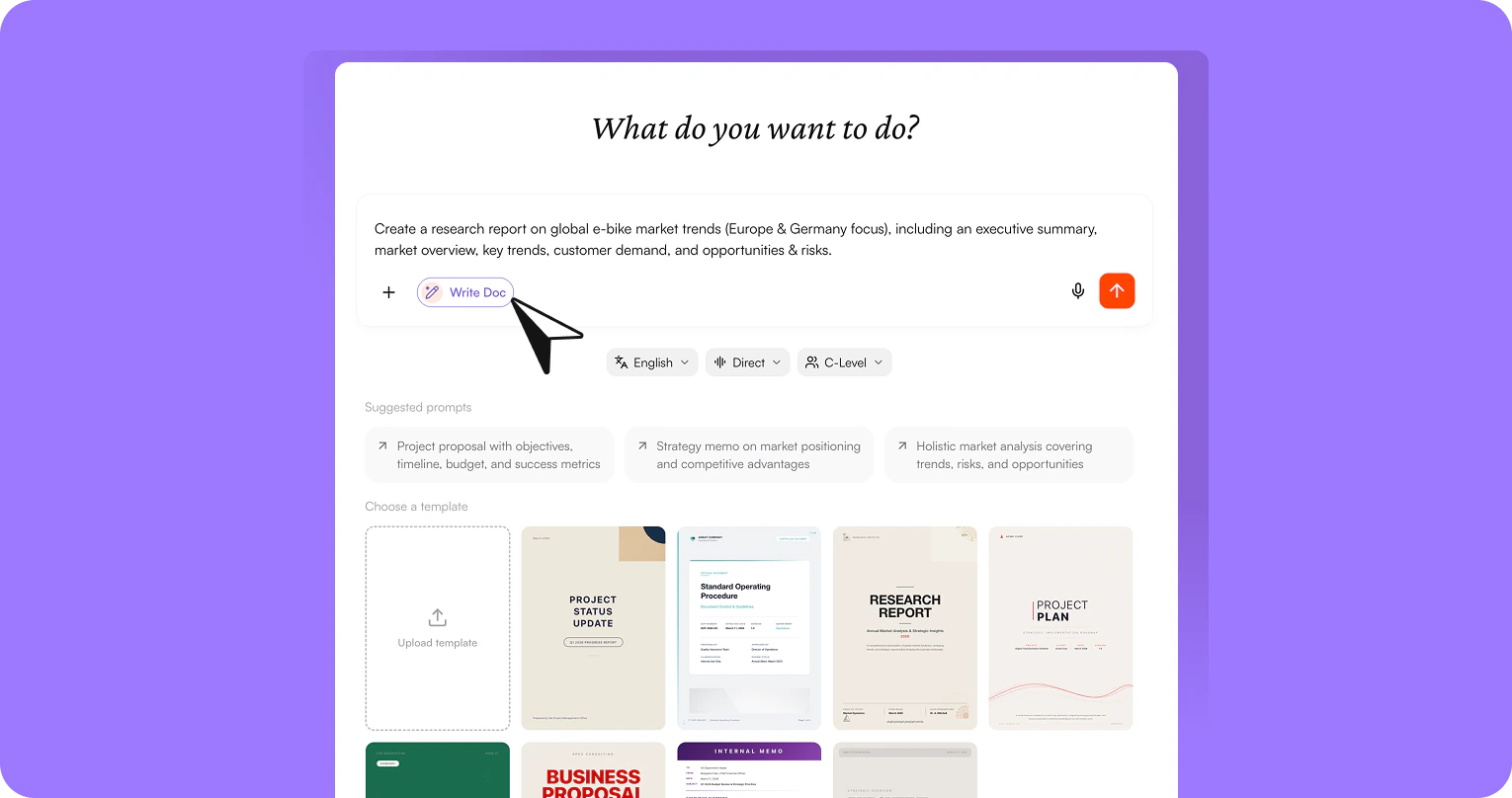
Open the chat and start the “Create document” task.
2
Describe the document
Describe the document you want to create in the input field.Example:
Create a research report on global e-bike market trends (focus: Europe & Germany), including an executive summary, market overview, key trends, customer demand, as well as opportunities & risks.
Create a research report on global e-bike market trends (focus: Europe & Germany), including an executive summary, market overview, key trends, customer demand, as well as opportunities & risks.
3
Define corporate design & style
Make sure your document fully matches your brand:
- Upload your own template or select a template
- Define the language
- Set the tone of voice
- Specify the target audience
4
Send prompt
Submit your prompt.
5
Edit document in the editor
nuwacom automatically creates a structured document and opens it directly in the editor on the right. You can immediately edit, refine, and expand your content there.
Supported Template Files
You can use the following file formats as templates:.doc, .docx, .png, .jpg, .jpeg, .html Note
The maximum file size per upload is 50 MB.
Edit document
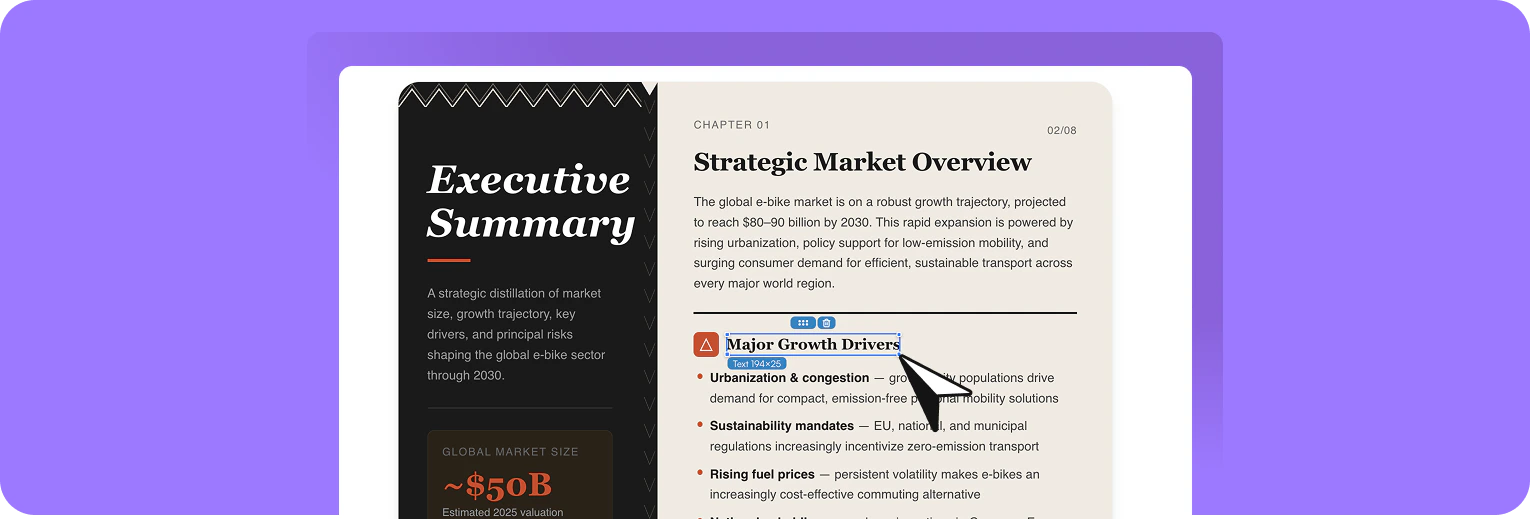
- Add or create new content
- Rewrite or optimize text
- Adjust structure and formatting directly
- Customize layout and visual elements
- Edit box styles (background, borders, colors)
- Adjust border width, style, and radius individually
- Upload or generate images
- Position and scale images flexibly
Save your changes anytime using “Save version” in the top right – this keeps all versions traceable and accessible.
Manage & organize documents
You can reuse and centrally organize your document at any time. Go to AI Apps → Documents to access the document overview. There, you’ll find all created documents and can manage them easily. You can:- Open and edit documents – update and refine content anytime
- Share documents – collect feedback and collaborate with your team
- Move documents into projects – group content by topic and use it in the right context
- Assign owners – create clear responsibilities and structure collaboration
- Add tags – find documents faster and keep everything organized
Export document
You can download your document at any time. Available formats:- DOCX