
- Control how every output is written, structured, and formatted
- Enforce consistent standards across reports, emails, summaries, and more
- Combine Skills to fully define how nuwacom responds
- Share proven formats and workflows with your team
- A Customer Communication Skill ensures all external messages follow consistent wording, terminology, and structure
- A Report Skill creates standardized reports with sections like executive summary, key insights, and next steps
- A Customer Support Skill structures every reply with a clear answer, step-by-step resolution, and a consistent support tone
New to Skills? nuwacom has you covered. Use the Skill Creator to build your own AI Skills.
How to use Skills
Automatic activation
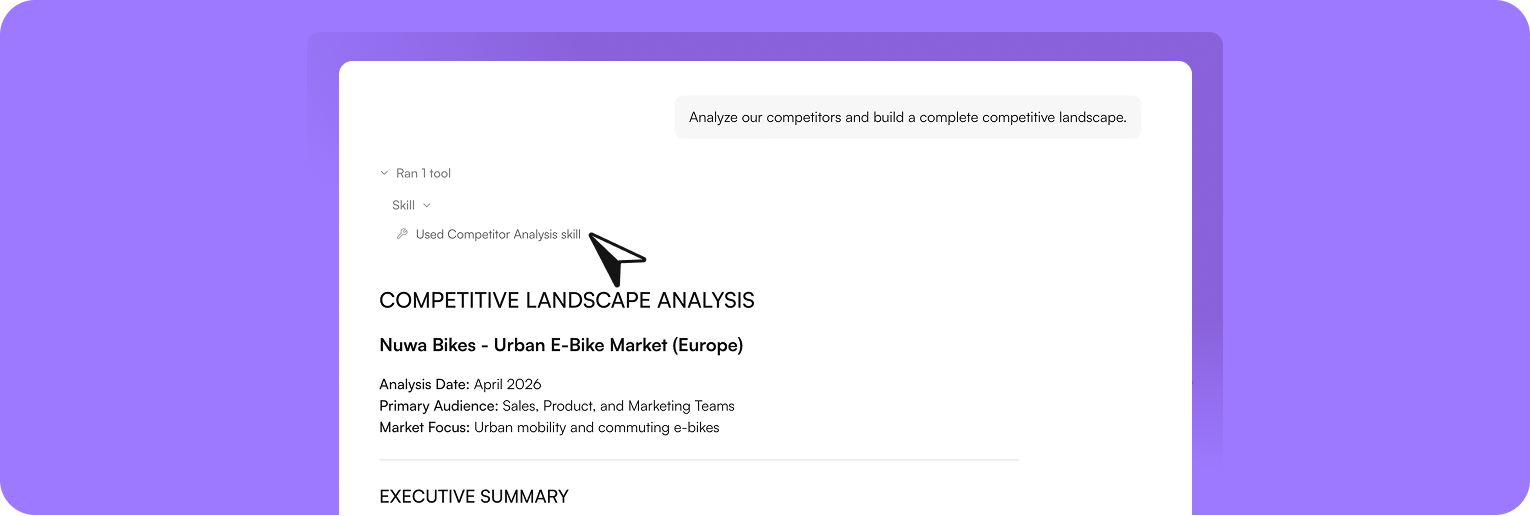
nuwacom reads each Skill’s description and automatically decides which ones are relevant to your request. If a match is found, the Skill is applied automatically — without you needing to select or mention it.
Important: The description defines when a Skill is used. It acts as the activation trigger.
“Write a follow-up email after a customer meeting. Include next steps and keep the tone professional.” → nuwacom detects a Customer Communication Skill based on the description (e.g. “Use for customer emails, follow-ups, and external communication”) and automatically applies it.
Call a Skill
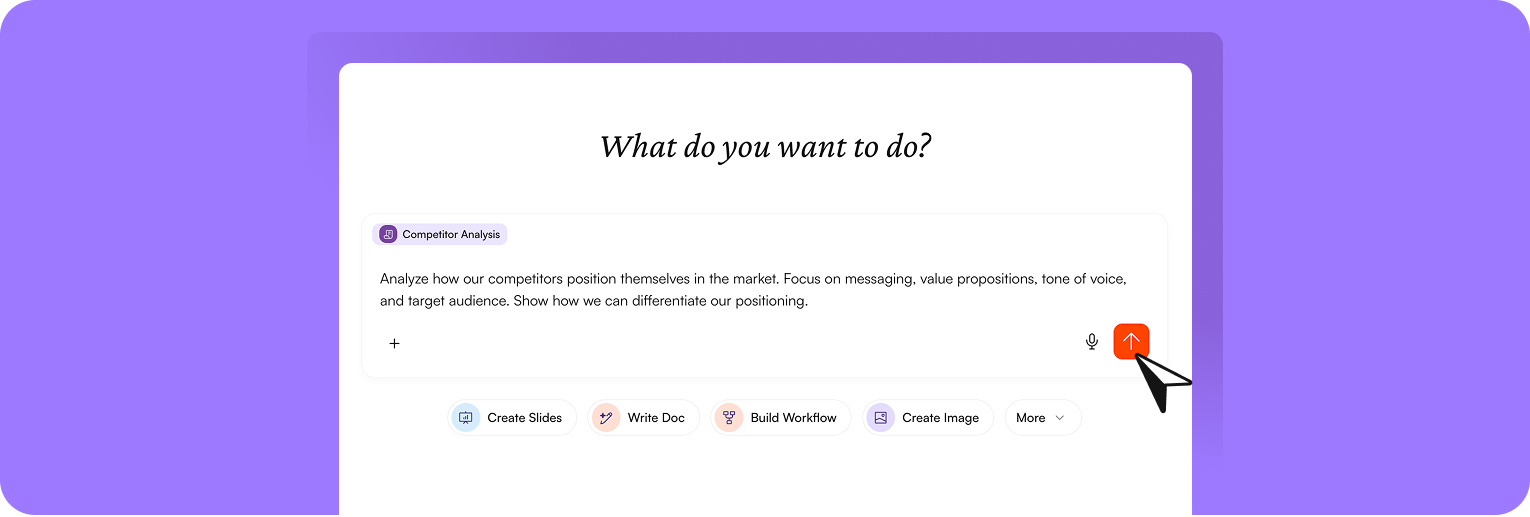
- Click the + button in the chat input
- Select Skills
- Choose the Skill you want to apply
- Send your prompt
You select a Competitor Analysis Skill and type: “Analyze how our competitors are positioned in the market.” → nuwacom returns a structured competitor analysis with clear sections such as Market Overview, Competitor Positioning, Messaging & Value Propositions, Target Audience, and Differentiation Opportunities — following the predefined format of the Skill.
Mention a Skill
You can also mention a Skill directly in your message. This is useful when you want to make sure a specific Skill is applied to your request, even if several Skills could be relevant. Example: You type:“@Customer Communication Skill Write a follow-up email after a customer meeting. Include next steps and keep the tone professional.” → nuwacom applies the mentioned Skill directly.
Activate a Skill: Toggle it on in the Skills overview to use it anytime in chat.
Skills in Agents
You can attach Skills directly to an Agent to define how it responds. Once a Skill is added, it is automatically active for everyone using that Agent. Users don’t need to install or select the Skill themselves. This means you can provide a fully configured Agent with tone, structure, and rules already built in. Users simply open the Agent and start working, while every output follows the same standard. Example An Agent with a Meeting Notes Skill always structures outputs into Key Decisions, Open Questions, and Next Steps — no setup required for the user. Skills vs. Agents — The Critical Distinction
The combination is the unlock: Apply a Skill to an Agent and you get autonomous task execution with guaranteed output quality. If your team has to navigate somewhere deliberately for something that should just always work, that behavior belongs in a Skill.
How to create a Skill
Go to Skills in the sidebar and click Add Skill. You have four options:Build with AI (recommended)
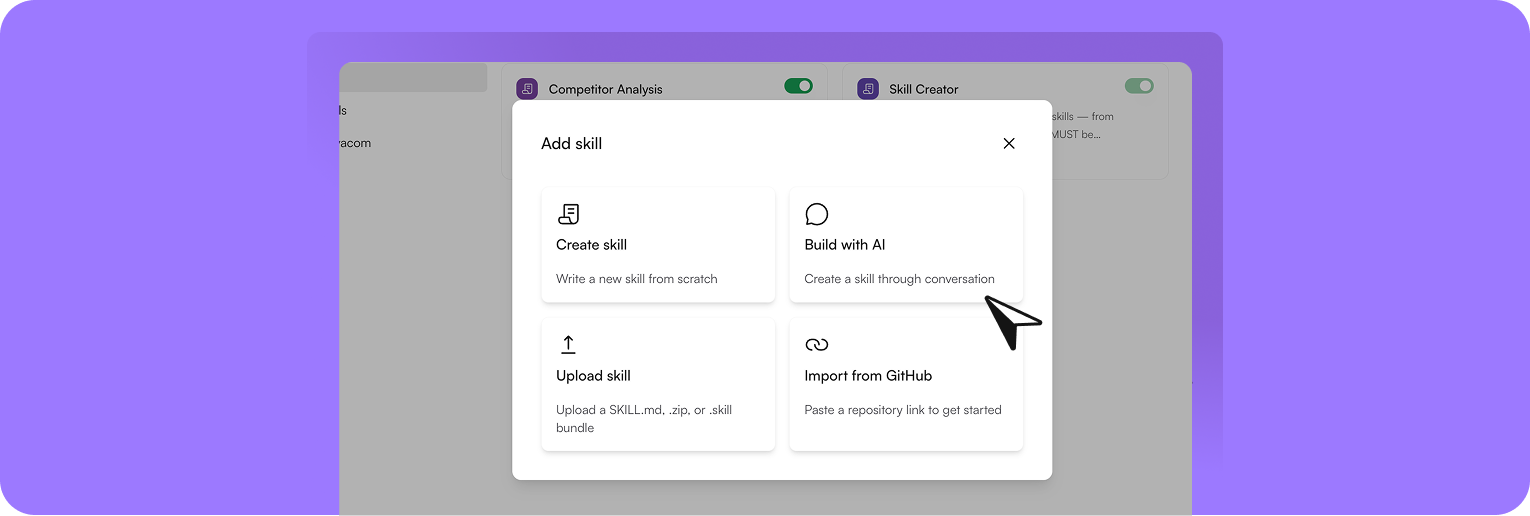
- Go to Add Skill
- Select Create with AI. A chat will open where the Skill Creator asks what your skill should do.
- Describe your use case — the AI will guide you through the setup and automatically generate a complete skill.
- Once finished, click Save. The skill is stored in your skill library, private by default, and can be shared with your team at any time.
Create manually
Define the Skill yourself. Use this option for well-defined use cases. Go to Add Skill → Create Skill.Enter a name, write a description, and define the instructions (structure, tone, rules, format).
Click Create to save the Skill.
Why the description mattersThe description determines when your Skill is applied. All active Skills run in the background. nuwacom reads each description and matches it against your request. If there is a match, the Skill is applied automatically. A vague description leads to unreliable behavior. The Skill may not trigger or may trigger at the wrong time.Write effective descriptionsWrite the description as if you were explaining to a colleague exactly when to use this Skill. Be specific and include clear trigger situations.Example:
❌ Status reports
✅ Use when asked for a status update, progress summary, or weekly reportA precise description ensures the Skill activates reliably and produces consistent results.
❌ Status reports
✅ Use when asked for a status update, progress summary, or weekly reportA precise description ensures the Skill activates reliably and produces consistent results.
Upload a Skill
Import an existing Skill file in one of the supported formats (SKILL.md, .zip, or .skill) to share or reuse Skills.Import from GitHub
Paste a repository link to import a Skill. This option is ideal for teams working with version control, e.g. Developer teams who want to add skills directly from GitHub.Add Your Own Files to Skills
You can attach your own files to a Skill so it can use your materials when generating content. For example, you can add brand guidelines, logos, reference graphics, or fonts directly to a Skill. These files are automatically used whenever the Skill creates images, documents, or presentations.Supported File Formats
Text files (editable in the Skill Editor)- Markdown (.md)
- Python (.py)
- Text (.txt)
- JSON (.json)
- YAML (.yaml, .yml)
- CSV (.csv)
- HTML (.html)
- SVG (.svg)
- Images: PNG (.png), JPG/JPEG (.jpg, .jpeg), WEBP (.webp), GIF (.gif)
- Fonts: WOFF (.woff), WOFF2 (.woff2), TTF (.ttf), OTF (.otf)
File Limits
- Maximum file size: 100 MB per file
- Maximum total size of all files per Skill: 500 MB (uncompressed)
- Maximum ZIP upload size: 100 MB (compressed)
- Number of files: Unlimited, as long as the total size does not exceed 500 MB
- SKILL.md supports up to 50,000 characters
Skill Limits and Activation
Up to 20 Skills can be active per user at the same time. If you reach this limit, newly created Skills are added as inactive. To activate a new Skill, you must first deactivate another active Skill. Shared Skills are inactive by default. You can activate them whenever you need them.Using Fonts in Skills
Fonts can be bundled directly into a Skill so they are applied consistently whenever the Skill generates Word documents or templates. The following requirements ensure that fonts are detected and embedded correctly.Folder structure
Place font files in theassets/fonts/ folder inside the Skill. The following paths are also recognized: fonts/, images/, logos/, img/. Fonts placed at the Skill root are not detected.
Supported formats
TTF and OTF are the recommended formats. WOFF and WOFF2 are supported as well. Variable fonts cannot be embedded in Office documents and are not accepted.Font faces per family
Word supports four faces per font family: regular, bold, italic, and bold italic. Additional weights such as Light, SemiBold, or Black are folded into the base family, and only one per slot is used. To make a specific weight selectable in Word, ship it under its own distinct family name.Naming convention
Use the formatFamilyName-Style.ttf, for example Montserrat-Bold.ttf. Numeric suffixes in the filename are also handled.
License requirements
Fonts with an embedding restriction in the OS/2 fsType field are refused by design. If a font cannot be embedded, the document is generated with a fallback font instead. Verify that the font license permits document embedding before adding the font to a Skill.Manage Skills
Skills overview
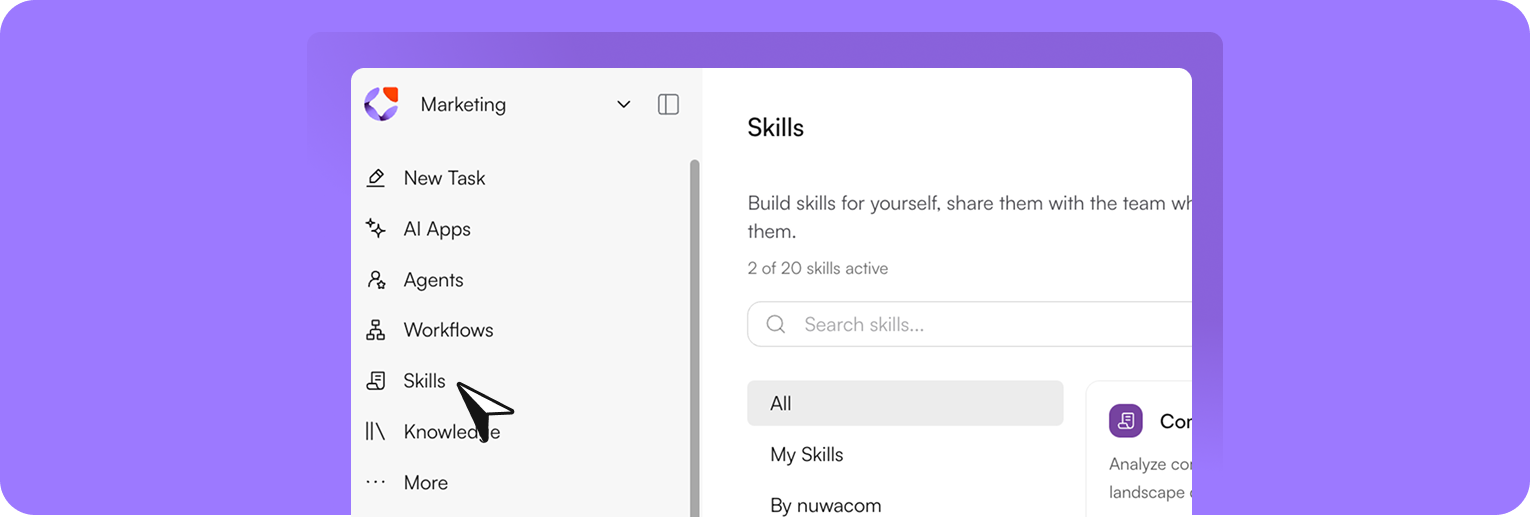
- All: All Skills in the workspace
- My Skills: Skills you created
- By nuwacom: Default Skills
Activate or deactivate Skills
Each Skill has a toggle:- On: Skill is active and available in chat
- Off: Skill is saved but not available in chat
Edit Skills
You can update Skills anytime:- Open a Skill from the list
- Edit description or instructions
- Changes are saved automatically
Share Skills
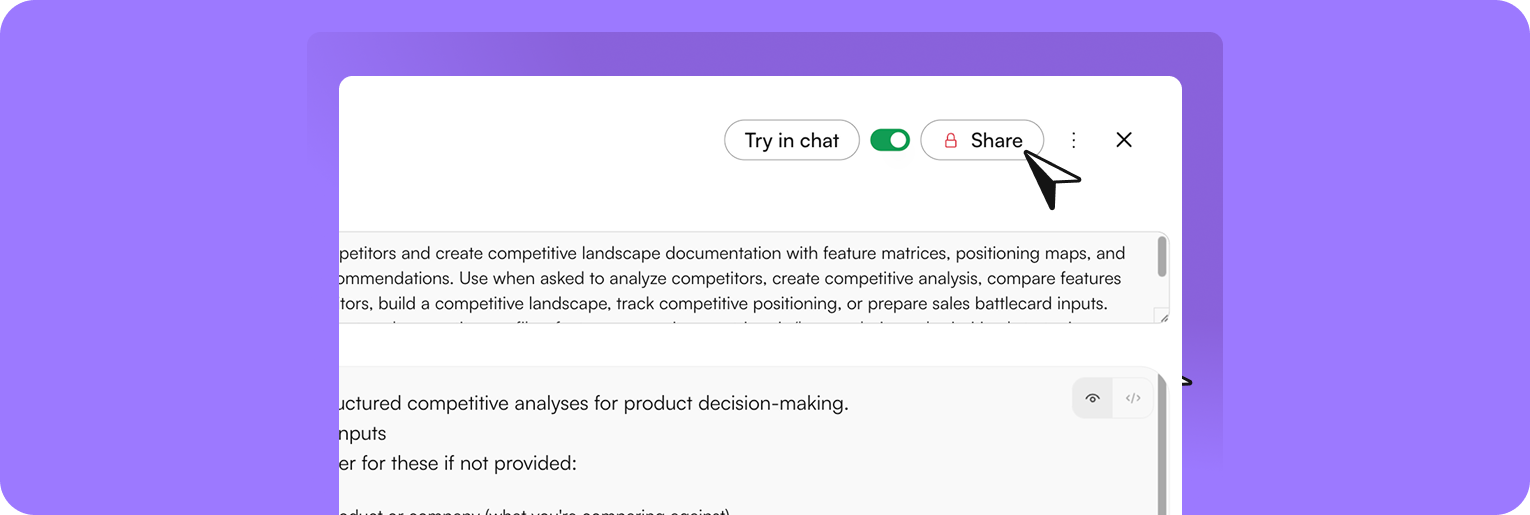
- Skills are private by default
- Shared Skills are inactive by default. You can activate them whenever you need them.
- Share them with your team to standardize outputs and ensure consistent formats, tone, and workflows across users
Skills Governance
nuwacom’s skills operate across three tiers of ownership and visibility: system skills, workspace skills, and personal skills. Each tier has distinct rules around who can create, manage, and activate them.System Skills
System skills are nuwacom’s proprietary, platform-level skills developed and maintained by the nuwacom team. They are not visible to users and cannot be modified or toggled by admins or individuals. These skills run silently in the background and form the exclusive foundation of how the superagent operates. They cover a broad range of domains, tasks, and workflows, and are not exposed in any user-facing skill management interface. One exception is the Skill Creator skill, which is active by default for all users and cannot be toggled off. This skill allows users to create their own custom skills directly by chatting with the AI, without any technical setup required.Workspace Skills
Workspace skills are created and managed by admins and editors. They allow organisations to build and distribute custom skills tailored to their specific processes, terminology, or workflows.- Both admins and editors can create a skill and share it with all users in the workspace.
- When a skill is shared workspace-wide, it is active by default for all recipients.
- Individual users can toggle a workspace skill off if it is not relevant to their work.
Personal Skills
Personal skills are created by editors and admins for their own use. They are private by default and not visible to other workspace members unless explicitly shared. Users can activate or deactivate their personal skills at any time.Roles and Permissions
What the Superagent Can Access
The superagent has access to the broadest set of skills across all tiers.
In summary, the superagent draws on all system skills automatically, plus any workspace or personal skills the user has active at the time of the interaction.
FAQ
What is the difference between Skills and Agents?
What is the difference between Skills and Agents?
Agents are the executors — and fully configurable.
You don’t just define what they do, but also what they use and how they operate: connected knowledge (e.g. product description), available actions (e.g. send message), and specific settings like the AI model, response style, or tone of voice. A configured Agent knows what to do, how to execute it, and how to guide you through the process.Skills are the standards.
They define what the output looks like: structure, tone, format, and rules. They run in the background and ensure that outputs are consistent and immediately usable.The core difference:
A configured Agent knows what to do and how to execute it. A Skill ensures the result always meets the desired standards.
You don’t just define what they do, but also what they use and how they operate: connected knowledge (e.g. product description), available actions (e.g. send message), and specific settings like the AI model, response style, or tone of voice. A configured Agent knows what to do, how to execute it, and how to guide you through the process.Skills are the standards.
They define what the output looks like: structure, tone, format, and rules. They run in the background and ensure that outputs are consistent and immediately usable.The core difference:
- Agent = executes tasks (using knowledge, tools, and defined settings)
- Skill = shapes the quality and consistency of the output
A configured Agent knows what to do and how to execute it. A Skill ensures the result always meets the desired standards.
How do Skills and Policies relate to each other, and which takes precedence?
How do Skills and Policies relate to each other, and which takes precedence?
Skills and policies serve different roles and complement each other.Policies define the framework: they determine what is allowed, which standards apply, and where clear boundaries lie, for example in compliance, data protection, or company-wide rules.Skills control the execution: they define how nuwacom operates within this framework, for example in terms of tone, structure, format, or specific ways of working.The key point is the hierarchy:
Policies always take precedence over skills. A skill cannot override or bypass a policy.In practice, this means:
Skills can structure, formulate, and automate content, but always remain within the defined rules. If a conflict occurs, the policy always applies.In short:
Policies define the boundaries, skills define how work is carried out within those boundaries.For the superagent, this means:
It uses system skills as a foundation, along with active workspace and personal skills for execution, while always operating within the applicable policies.
Policies always take precedence over skills. A skill cannot override or bypass a policy.In practice, this means:
Skills can structure, formulate, and automate content, but always remain within the defined rules. If a conflict occurs, the policy always applies.In short:
Policies define the boundaries, skills define how work is carried out within those boundaries.For the superagent, this means:
It uses system skills as a foundation, along with active workspace and personal skills for execution, while always operating within the applicable policies.
When should I use a Skill?
When should I use a Skill?
Use a Skill whenever you want reliable, repeatable results.For example, if you regularly create reports, emails, or summaries and want them to follow the same structure and tone every time, a Skill ensures this automatically. Instead of rewriting instructions or correcting outputs, you define the standard once and reuse it across all your work.
Can I combine multiple Skills?
Can I combine multiple Skills?
Yes. You can combine Skills to control different aspects of an output at the same time. For example, one Skill can define the structure of a report, while another ensures a consistent tone. This allows you to fully standardize how results are generated and presented.
Who can see my Skills?
Who can see my Skills?
Skills are private by default. You can share them with individual users, user groups, or the entire workspace to make them reusable at scale. This ensures that everyone works with the same standards, formats, and structures without needing to define them individually.System Skills are always active across the entire workspace and automatically apply to all users.
Do I need technical knowledge to create a Skill?
Do I need technical knowledge to create a Skill?
No. You can create Skills through a simple conversation using Build with AI (Skill Creator). Describe what you need in plain language, and nuwacom will guide you through the process and generate the Skill for you. At the end of the process, the Skill can be saved to your Skill Library, where you can manage, reuse, and share it.
Who can create and manage Skills?
Who can create and manage Skills?
Permissions depend on your role.Reader
You can use existing Skills by activating or deactivating them for your own work. You cannot create or modify Skills.Editor and Admin
You can create, edit, and delete your own Skills. You can also manage Skills that have been shared with you with edit rights. You cannot edit or delete all Skills across the workspace globally.
You can use existing Skills by activating or deactivating them for your own work. You cannot create or modify Skills.Editor and Admin
You can create, edit, and delete your own Skills. You can also manage Skills that have been shared with you with edit rights. You cannot edit or delete all Skills across the workspace globally.
Can I use Skills without creating them?
Can I use Skills without creating them?
Yes. If a Skill has been shared with you, you can activate it and use it directly in chat. This allows you to benefit from existing standards without creating your own Skills.
How do Skills work together in practice?
How do Skills work together in practice?
The Superagent always uses:
- System Skills as the foundation
- Plus any active Workspace or Personal Skills
- You don’t need to select Skills manually
- Only active Skills influence the output
- Disabled Skills are ignored