
Introduction to Workflows
Workflows in nuwacom automate recurring processes. Required steps are defined once, then executed in sequence. Agents, logic, integrations, and external tools can run within one workflow. A workflow can be described in chat. nuwacom then generates a multi-step workflow that connects actions, logic, and external systems. The visual editor keeps every step adjustable, extendable, and transparent. Suggested prompts provide a starting point for common workflow scenarios. They help explore recurring use cases and turn them into editable workflow structures.Key benefits
- Automate recurring processes with defined steps.
- Combine agents, logic, integrations, and external tools in one workflow.
- Reuse results from earlier workflow steps in later steps.
- Add manual approvals before a workflow continues.
- Create reusable outputs such as documents, email drafts, designed documents, and slide decks.
When to use workflows
Workflows are suitable when tasks repeat regularly, follow a clear structure, or require several systems to work together. Typical use cases include creating and reviewing reports, monitoring incoming data, sending automated emails, processing customer inputs, conducting research, and generating summaries. Use tasks for ad hoc work in chat. Use workflows for recurring, automated processes with fixed steps.Creating Workflows
Create the First Version in Chat
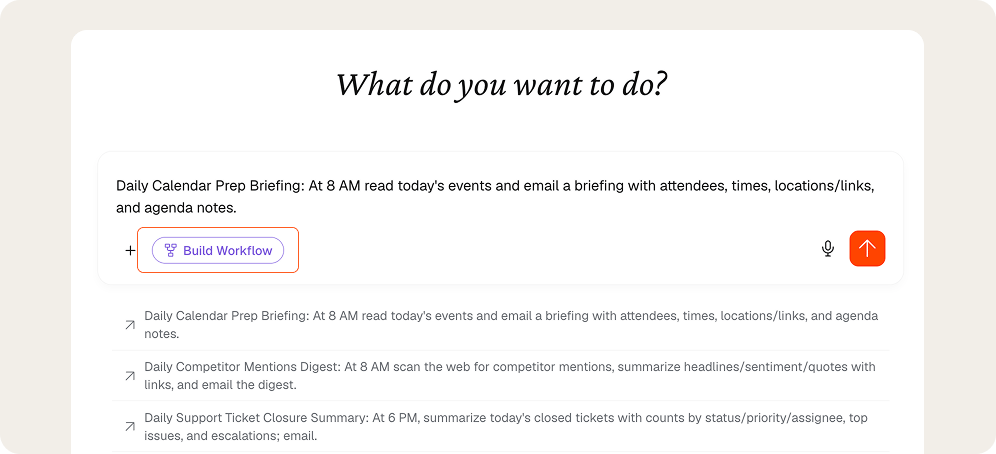
- Open the chat and select the task Build workflow or click + New Workflow in the workflow module.
- Describe what the workflow should do, including the goal, the information to process, and the final action.
- Send the prompt.
Review the Workflow in the Workflow Builder
The Workflow Builder shows the generated structure on the canvas, where each component and connection can be verified before production use.- Open the workflow in the Workflow Builder.
- Review the workflow structure on the canvas.
- Check how the components are connected.
- Review where logic, agents, or integrations are used.
- Adjust missing steps or existing configurations.
- Test the workflow before production use.
The prompt “Help me fix an error” starts an AI-supported workflow check. nuwacom analyzes the workflow, identifies issues, and shows how to resolve them.
Run the Workflow
The Run Progress panel tracks execution step by step and surfaces the status of each one.- Select Run in the upper-right corner.
- Follow the execution in the Run Progress panel and check the status of each step:
- Green: completed
- Purple: running
- Grey: not started
- Red: failed or cancelled
- Expand a step to view details or error messages.
- Review the results and confirm that all steps and outputs are correct.
Publish a Workflow
The Publish button in the top bar sets a draft workflow live. Once published, the workflow becomes active and runs automatically whenever its trigger fires, and its status changes to Live, indicated by a green dot in the top bar. The Publish button appears disabled while the workflow is already live.Unpublish a Workflow
Unpublish is available in the three-dot menu (⋮) in the top bar. Unpublishing returns a live workflow to draft state, so it no longer runs when its trigger fires. The workflow and its configuration remain saved and editable, and it can be published again at any time.Execution History
The three-dot menu (⋮) also provides the Execution History of a workflow. It opens a panel on the left listing every past run of the workflow in chronological order, with the most recent at the top. Each entry shows a status icon, a timestamp, and the run duration. Runs can be filtered by status using the All, Running, Completed, Failed, and Cancelled tabs. Selecting an entry displays that run on the canvas on the right, showing each step with its individual status and processing time. This makes it possible to trace how a specific run progressed and to locate where a failed run stopped.Export and Import a Workflow
The three-dot menu (⋮) also provides Export JSON and Import JSON. Export JSON downloads the workflow’s complete configuration as a JSON file, and Import JSON loads a workflow from a JSON file back into the workspace. This is useful whenever a workflow needs to move between people or environments. As of today, workflows cannot be shared with other users directly. Exporting the JSON file and handing it over is the way to pass a workflow to someone else, who can then import it into their own workspace. The same approach works for keeping a backup before making major changes, duplicating a workflow as a starting point for a new one, or moving a workflow from a test to a production workspace.Managing Workflows
The metrics bar at the top of the Workflows page summarizes overall activity across the last 30 days, including the total and published workflow counts, total runs, success rate, and failed runs. The page then presents every workflow in the workspace in a single table. Each row represents one workflow, and the columns describe its key attributes and recent activity.Metrics Bar
A metrics bar at the top of the page summarizes activity across all workflows:- Workflows: Total number of workflows, with a count of how many are published.
- Runs: Number of runs recorded in the last 30 days.
- Success rate: Share of successful runs over the last 30 days. A dash appears when no runs exist yet.
- Failed: Number of failed runs in the last 30 days.
Create a new Workflow
The + New Workflow button in the top-right corner opens a new Workflow in draft state, which stays a draft until it is completed and published. The new workflow opens with two ways to build it: the Copilot panel on the left builds the workflow from a plain-language description of what it should do, while the editor on the right starts from scratch.The Table View
Every workflow in the workspace appears as a single row, and each column describes one of its properties. A three-dot button at the end of each row opens that workflow’s actions.
The sort control above the table reorders the rows, and the columns panel adjusts which columns are shown.
Workflow Actions
The three-dot button at the end of each row opens the actions for that individual workflow:- Pin to sidebar: Adds the workflow to the sidebar for fast, recurring access.
- Edit: Opens the workflow to adjust its trigger, steps, and details.
- Rename: Changes the workflow name in place.
- Delete: Removes the workflow permanently. This action appears in red to mark it as destructive.
Workflow Status
The Status column shows whether a workflow is running:- Draft: The workflow is saved and editable but does not run automatically.
- Live: The workflow is active and runs whenever its trigger fires.
Triggers
Triggers start a workflow. A workflow starts manually or automatically when a defined event occurs. The Trigger column shows which type applies to each workflow:- Scheduled Trigger: Runs the workflow on a schedule, at defined times or intervals.
- Manual Trigger: Starts the workflow by hand, with custom inputs.
- Form Trigger: Starts the workflow when a form is submitted.
- Webhook: Starts the workflow via an incoming HTTP webhook.
- App Trigger: Starts the workflow from an event in a connected app.
- nuwacom Trigger: Starts the workflow from an event in the nuwacom workspace.
Steps
Steps are the individual actions a workflow performs. The Steps column previews them as a row of icons that run in order. Steps are built from nodes, logic controls, agents, integrations, and output nodes.Run History and Results
Three columns track how each workflow has performed:- Runs (30 d): Number of times the workflow ran in the last 30 days.
- Success: Result of the most recent runs, shown as Succeeded, Failed, Cancelled, or a dash when no run has occurred.
- Last Run: Result and relative time of the most recent run, for example “Failed · 4 months ago”.
Managing Columns
The columns control next to Filter opens a panel for showing or hiding table columns. A green toggle keeps a column visible, and a gray toggle hides it. The table updates immediately. Shown by default: Name, Status, Trigger, Steps, Runs, Success rate, Last Run, and Last modified. The Created column is available but hidden until its toggle is enabled.Filtering, Searching, and Sorting Workflows
Three controls narrow down the workflow list. A search term and a sort order each apply on top of the active filter.Search
The search field filters the list by workflow name as characters are entered.Filter
The Filter control opens a dropdown that narrows the list by status. A checkmark marks the option currently applied, and a count next to each option shows how many workflows match:- All: Shows every workflow regardless of status. This is the default view.
- Live: Shows only active workflows, marked with a green dot in the Status column.
- Drafts: Shows only saved, editable workflows that are not yet live and do not run automatically.
Sort
The sort control on the right opens a dropdown of ordering options. A checkmark marks the option currently applied. By default the list is sorted by Recently Updated.- Recently Updated: Orders the list by the last time each workflow was edited, most recent first.
- Recently Run: Orders the list by the time of the most recent run, most recent first.
- Most Runs: Orders the list by number of runs, from the most-run workflow down.
- Recently Created: Orders the list by creation date, newest first.
- A–Z: Orders the list alphabetically by workflow name.
- Schedule: Orders the list by the workflows’ scheduled run times.
Components of a workflow
Triggers
Triggers start a workflow. A workflow can start manually or automatically when a defined event occurs. Common trigger types include manual triggers, form submissions, and scheduled triggers. Scheduled workflows can create daily reports, weekly meeting summaries, or monthly data analyses.Nodes
Nodes are the individual steps within a workflow. Each node performs one specific action. Typical node actions include running an agent, processing data, transforming data, calling an external API, sending an email, and applying logical conditions. Nodes can be connected to create simple automations or complex multi-step workflows.Logic controls
Logic controls define how workflow steps are executed. They allow the workflow to adapt to incoming data. Supported controls include If/Else conditions, loops, and parallel steps. If/Else conditions define the next path. Loops repeat actions for multiple items. Parallel steps run tasks at the same time.Agents
Agents can run as workflow steps. They can generate content, analyze data, summarize documents, perform research, and make decisions. Agent results can be passed to other agents. This enables multi-agent automations within one workflow. Example workflow: one agent creates a job description. A second agent reviews and refines it. The final result is sent by email.Integrations
Integrations connect workflows with external tools and services. Examples include email services, external APIs through HTTP requests, and connected data systems. This allows workflows to move data between systems automatically.Output
Workflow Output Nodes create reusable nuwacom content at the end of a workflow, including documents, email drafts, and slides. Outputs can be saved to the Knowledge Base, and optionally attach the result to a project.Review and monitor workflows
Manual approval steps pause a workflow until a result is reviewed, approved, or rejected. The workflow view provides an overview of the current execution status and supports detailed analysis of individual runs. The workflow view also allows you to:- Inspect results for individual steps.
- Identify and analyze errors.
- Review previous workflow runs.
- Verify how manual approval decisions affect the workflow.
nuwacom Trigger
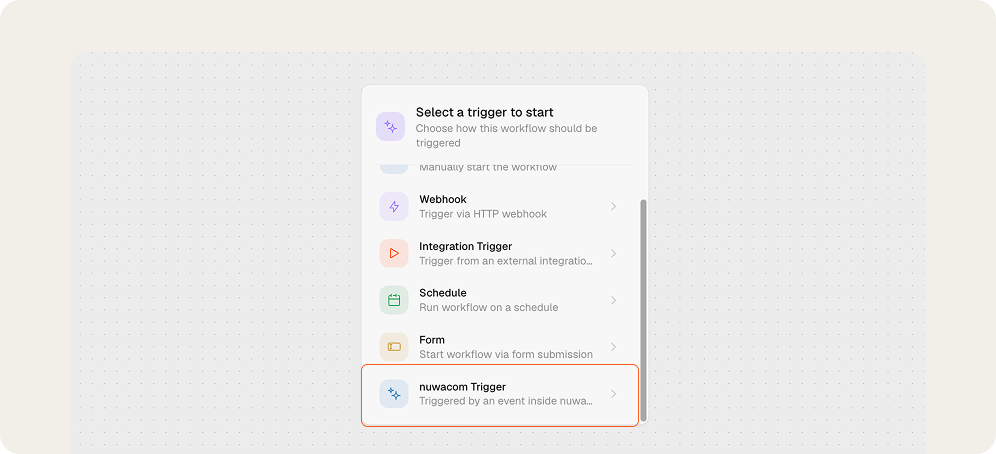
Key benefits of nuwacom-native workflow triggers
- Start workflows as soon as the configured event occurs.
- Limit workflow runs to relevant events through filters.
- Provide agents with the data that triggered the workflow.
- Configure internal events without external connections.
- Display available trigger fields in the variable picker.
Supported use cases
- Start a published workflow when a new meeting note is created.
- Start a workflow when a Knowledge Base file finishes processing.
- Restrict a trigger to files added to a specific Knowledge Base folder.
- Pass event details to downstream workflow steps and AI agents.
- Reference trigger data through the built-in variable picker.
Example
A workflow can start automatically when a file finishes processing in a selected Knowledge Base folder. The workflow can then pass the file details to an AI agent for classification, summarization, or further processing.nuwacom Outputs
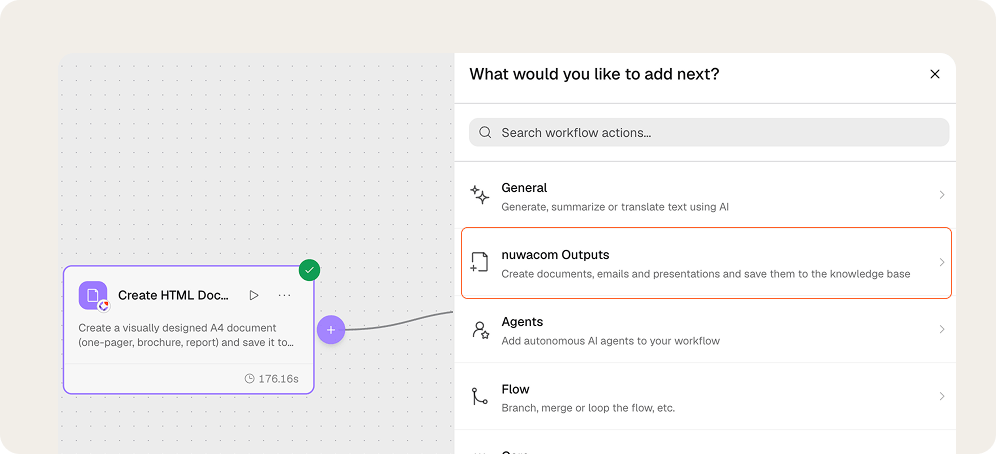
Key benefits of Workflow Output Nodes
- Create finished deliverables directly from workflow results.
- Reduce manual copying between tools.
- Apply consistent writing, formatting, and brand guidelines.
- Save outputs in the correct Knowledge Base folder or project.
- Reuse generated content in later workflow steps.
- Prevent unnecessary duplicates when rerunning an output step.
What Workflow Output Nodes can create
Workflow Output Nodes can create HTML documents, plain text documents, email drafts, slide decks, and designed documents using selected skills and bundled assets. The node can generate new content or save the output from an earlier step unchanged.When to use Workflow Output Nodes
Workflow Output Nodes are suitable for recurring processes that produce reusable content. Relevant scenarios include summaries from structured workflow results, recurring documents, email drafts for review, slide decks from collected information, branded documents from standardized instructions, and project documentation.Example
A workflow receives meeting notes from an earlier step. A Workflow Output Node turns the result into a structured HTML document.FAQ
When should workflows be used?
When should workflows be used?
Workflows fit recurring tasks with a clear structure. They also support processes that connect multiple systems.
What is the difference between tasks and workflows?
What is the difference between tasks and workflows?
Tasks support ad hoc work in chat. Workflows automate recurring processes with fixed steps that run again and again.
Does every workflow need to be built manually?
Does every workflow need to be built manually?
No. A workflow can be described in chat. nuwacom generates a first version that can be adjusted in the Workflow Builder.
Can a workflow run automatically?
Can a workflow run automatically?
Yes. Workflows can run on schedules, from form submissions, or from internal nuwacom events. The selected trigger defines how the workflow starts.
Can workflows use more than one agent?
Can workflows use more than one agent?
Yes. A workflow can include multiple agent steps. The output of one agent can be passed to the next.
Can results be reviewed before a workflow continues?
Can results be reviewed before a workflow continues?
Yes. Human-in-the-loop approval steps allow results to be reviewed, approved, or rejected before the next step runs.
Can a workflow create documents or saved outputs?
Can a workflow create documents or saved outputs?
Yes. Output nodes can create documents, email drafts, designed documents, and slide decks directly in nuwacom.