> ## Documentation Index
> Fetch the complete documentation index at: https://docs.nuwacom.ai/llms.txt
> Use this file to discover all available pages before exploring further.
# Privacy Mode
## Overview
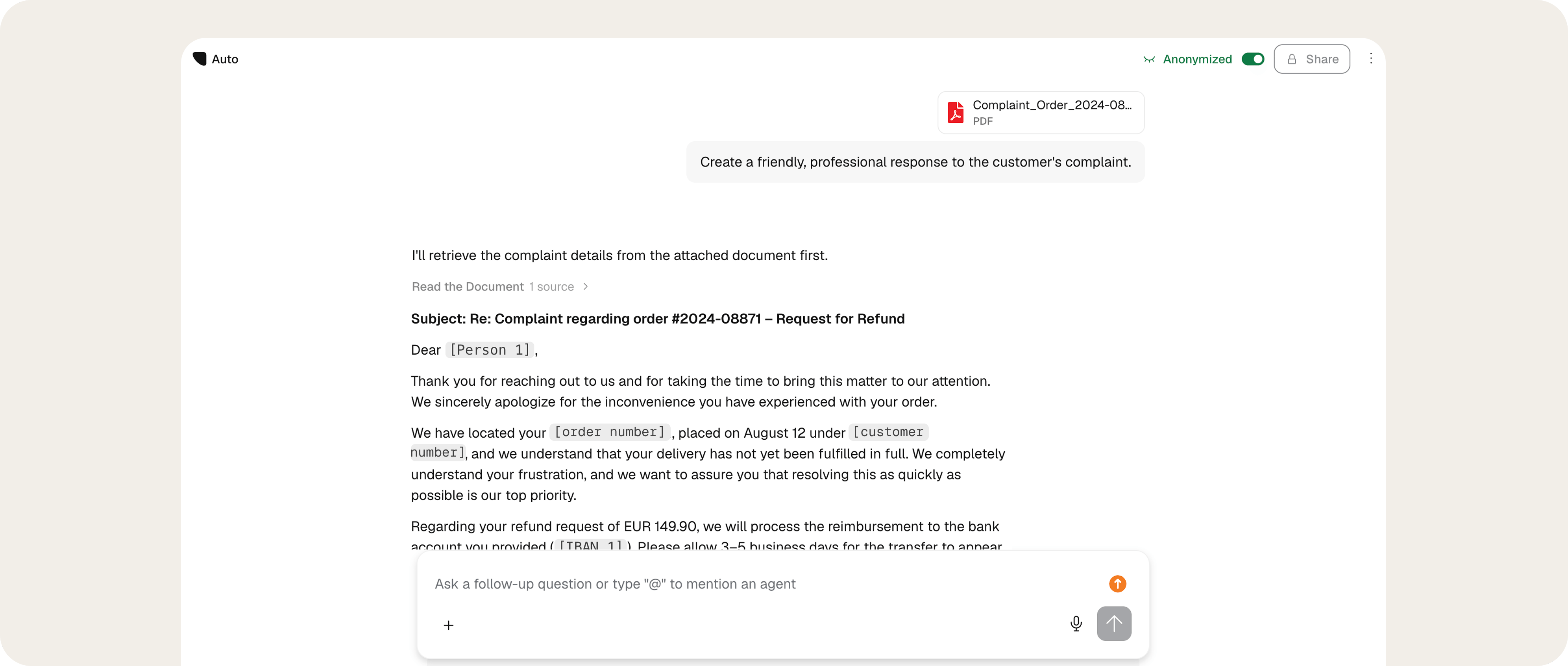 Privacy Mode detects personally identifiable and sensitive information (PII) in chat inputs and uploaded documents, then replaces it with neutral placeholders before any content is sent to an external AI model. This reduces the risk that personal data is disclosed to external AI providers or stored in log and processing data. The AI still receives enough context to answer the request, while the original values remain protected inside nuwacom.
## Key Benefits
* **Anonymize data before processing:** Recognized information — such as names, contact details, customer and employee data, financial information, contract details, and other confidential business data — is replaced with neutral placeholders before it reaches the AI model.
* **Protect prompts and files:** Anonymization applies to both chat input and uploaded documents.
* **Stay informed:** Anonymized files are clearly labeled, and protected values appear as placeholders in conversations.
* **View original information when needed:** Hover over a placeholder or switch between the anonymized and original display within nuwacom.
Enterprise customers can try Privacy Mode at no additional cost until the end of the year. To enable it for your organization, contact your Customer Success Manager.
## When to Use
Privacy Mode is designed for organizations with elevated requirements for data protection, information security, and compliance. Typical contexts include healthcare, finance and insurance, public administration, legal and consulting services, HR, and other regulated or data-sensitive areas. Use it whenever a message or document contains personal data that should not be exposed to an external AI provider.
## How It Works
With Privacy Mode active, processing runs through several steps:
1. **Input or document upload**: A message is entered in nuwacom, or a document is uploaded for processing.
2. **Automated detection**: The content is scanned for personal and sensitive information, including names, email addresses, phone numbers, identification numbers, and further configurable attributes.
3. **Placeholder replacement**: Detected values are replaced by unique, neutral placeholders, for example Maria Schneider becomes \[Person] and [maria@example.com](mailto:maria@example.com) becomes \[EMAIL]. Hover to view the original value.
4. **Protected transmission**: Only the anonymized version is sent to the external AI model, which processes the request without access to the original values.
5. **Restoration inside nuwacom**: Where required, nuwacom holds the mapping between placeholders and original values in protected form and restores them in the generated response for authorized users.
For detection, locally operated models can be used, so recognition takes place inside the controlled system environment before content leaves for an external AI model.
## How to enable Privacy Mode
Admins manage Privacy Mode in the Workspace Settings, on the Privacy Mode page under AI Guardrails. They have two options: enforce it so it stays enabled for all users at all times, or leave it up to each user to enable or disable it as needed.
1. Open Workspace Settings and select *Privacy mode* under AI Guardrails.
2. Use the *Enforce Privacy Mode for all users* toggle to define the workspace behavior.
When enabled, Privacy Mode is always on for everyone in this workspace and cannot be turned off in the chat.
When disabled, each user decides in the chat whether to enable Privacy Mode for their messages.
## Using Privacy Mode in the Chat
The Privacy Mode control is located next to the chat input and is marked with a shield icon. This example shows how to process a customer complaint containing sensitive data.
1. **Enable Privacy Mode:** Activate the shield icon next to the chat input. If enforced by an admin, Privacy Mode is always active.
2. **Attach the document:** Upload the customer complaint using the attachment button.
3. **Send the prompt:** Enter a request to process the attached document and send it.
4. **Review the anonymized content:** Sensitive data is replaced with placeholders such as \[NAME=…]\[NAME=…], \[DATUM=…]\[DATUM=…], \[ID=…]\[ID=…], or \[IBAN=…]\[IBAN=…]. Hover over a placeholder to view the original value.
5. **Disable anonymization:** Turn off the anonymization toggle to replace the placeholders with the original names, dates, and numbers. This view is visible only to you.
This way, the customer complaint is processed by the AI without exposing personal or sensitive data. Names, dates, IDs, and financial information stay within the organization — the LLM only sees anonymized content.
***
## FAQ
Yes. PII Scrubbing anonymizes personal data before it is sent to the LLM. Recognized values are replaced with neutral placeholders, so external AI models process only the anonymized version and do not receive the original personal information.
The mapping between placeholders and original values remains securely within nuwacom, allowing authorized users to view or restore the original data in the nuwacom interface when needed.
Yes. Placeholders remain consistent within a request, so the model keeps the context without receiving the real values.
Yes. The anonymized version is used in system logs and stored processing data to avoid unnecessary exposure.
Only if enforcement is disabled in the workspace. When enforcement is enabled, Privacy Mode stays on for everyone and cannot be switched off in the chat.
Privacy Mode detects personally identifiable and sensitive information (PII) in chat inputs and uploaded documents, then replaces it with neutral placeholders before any content is sent to an external AI model. This reduces the risk that personal data is disclosed to external AI providers or stored in log and processing data. The AI still receives enough context to answer the request, while the original values remain protected inside nuwacom.
## Key Benefits
* **Anonymize data before processing:** Recognized information — such as names, contact details, customer and employee data, financial information, contract details, and other confidential business data — is replaced with neutral placeholders before it reaches the AI model.
* **Protect prompts and files:** Anonymization applies to both chat input and uploaded documents.
* **Stay informed:** Anonymized files are clearly labeled, and protected values appear as placeholders in conversations.
* **View original information when needed:** Hover over a placeholder or switch between the anonymized and original display within nuwacom.
Enterprise customers can try Privacy Mode at no additional cost until the end of the year. To enable it for your organization, contact your Customer Success Manager.
## When to Use
Privacy Mode is designed for organizations with elevated requirements for data protection, information security, and compliance. Typical contexts include healthcare, finance and insurance, public administration, legal and consulting services, HR, and other regulated or data-sensitive areas. Use it whenever a message or document contains personal data that should not be exposed to an external AI provider.
## How It Works
With Privacy Mode active, processing runs through several steps:
1. **Input or document upload**: A message is entered in nuwacom, or a document is uploaded for processing.
2. **Automated detection**: The content is scanned for personal and sensitive information, including names, email addresses, phone numbers, identification numbers, and further configurable attributes.
3. **Placeholder replacement**: Detected values are replaced by unique, neutral placeholders, for example Maria Schneider becomes \[Person] and [maria@example.com](mailto:maria@example.com) becomes \[EMAIL]. Hover to view the original value.
4. **Protected transmission**: Only the anonymized version is sent to the external AI model, which processes the request without access to the original values.
5. **Restoration inside nuwacom**: Where required, nuwacom holds the mapping between placeholders and original values in protected form and restores them in the generated response for authorized users.
For detection, locally operated models can be used, so recognition takes place inside the controlled system environment before content leaves for an external AI model.
## How to enable Privacy Mode
Admins manage Privacy Mode in the Workspace Settings, on the Privacy Mode page under AI Guardrails. They have two options: enforce it so it stays enabled for all users at all times, or leave it up to each user to enable or disable it as needed.
1. Open Workspace Settings and select *Privacy mode* under AI Guardrails.
2. Use the *Enforce Privacy Mode for all users* toggle to define the workspace behavior.
When enabled, Privacy Mode is always on for everyone in this workspace and cannot be turned off in the chat.
When disabled, each user decides in the chat whether to enable Privacy Mode for their messages.
## Using Privacy Mode in the Chat
The Privacy Mode control is located next to the chat input and is marked with a shield icon. This example shows how to process a customer complaint containing sensitive data.
1. **Enable Privacy Mode:** Activate the shield icon next to the chat input. If enforced by an admin, Privacy Mode is always active.
2. **Attach the document:** Upload the customer complaint using the attachment button.
3. **Send the prompt:** Enter a request to process the attached document and send it.
4. **Review the anonymized content:** Sensitive data is replaced with placeholders such as \[NAME=…]\[NAME=…], \[DATUM=…]\[DATUM=…], \[ID=…]\[ID=…], or \[IBAN=…]\[IBAN=…]. Hover over a placeholder to view the original value.
5. **Disable anonymization:** Turn off the anonymization toggle to replace the placeholders with the original names, dates, and numbers. This view is visible only to you.
This way, the customer complaint is processed by the AI without exposing personal or sensitive data. Names, dates, IDs, and financial information stay within the organization — the LLM only sees anonymized content.
***
## FAQ
Yes. PII Scrubbing anonymizes personal data before it is sent to the LLM. Recognized values are replaced with neutral placeholders, so external AI models process only the anonymized version and do not receive the original personal information.
The mapping between placeholders and original values remains securely within nuwacom, allowing authorized users to view or restore the original data in the nuwacom interface when needed.
Yes. Placeholders remain consistent within a request, so the model keeps the context without receiving the real values.
Yes. The anonymized version is used in system logs and stored processing data to avoid unnecessary exposure.
Only if enforcement is disabled in the workspace. When enforcement is enabled, Privacy Mode stays on for everyone and cannot be switched off in the chat.