> ## Documentation Index
> Fetch the complete documentation index at: https://docs.nuwacom.ai/llms.txt
> Use this file to discover all available pages before exploring further.
# Images
Create professional images directly in nuwacom with just a few words. Use suggested prompts or describe your visual and define image style and color mood. The AI generates matching visuals for presentations, newsletters, or social media.
Use these example prompts to get started right away:
* *Hero image for a landing page with a diverse team*
* *LinkedIn post image announcing a product launch with modern branding*
* *Recruiting campaign image announcing open positions*
## **How to create images**
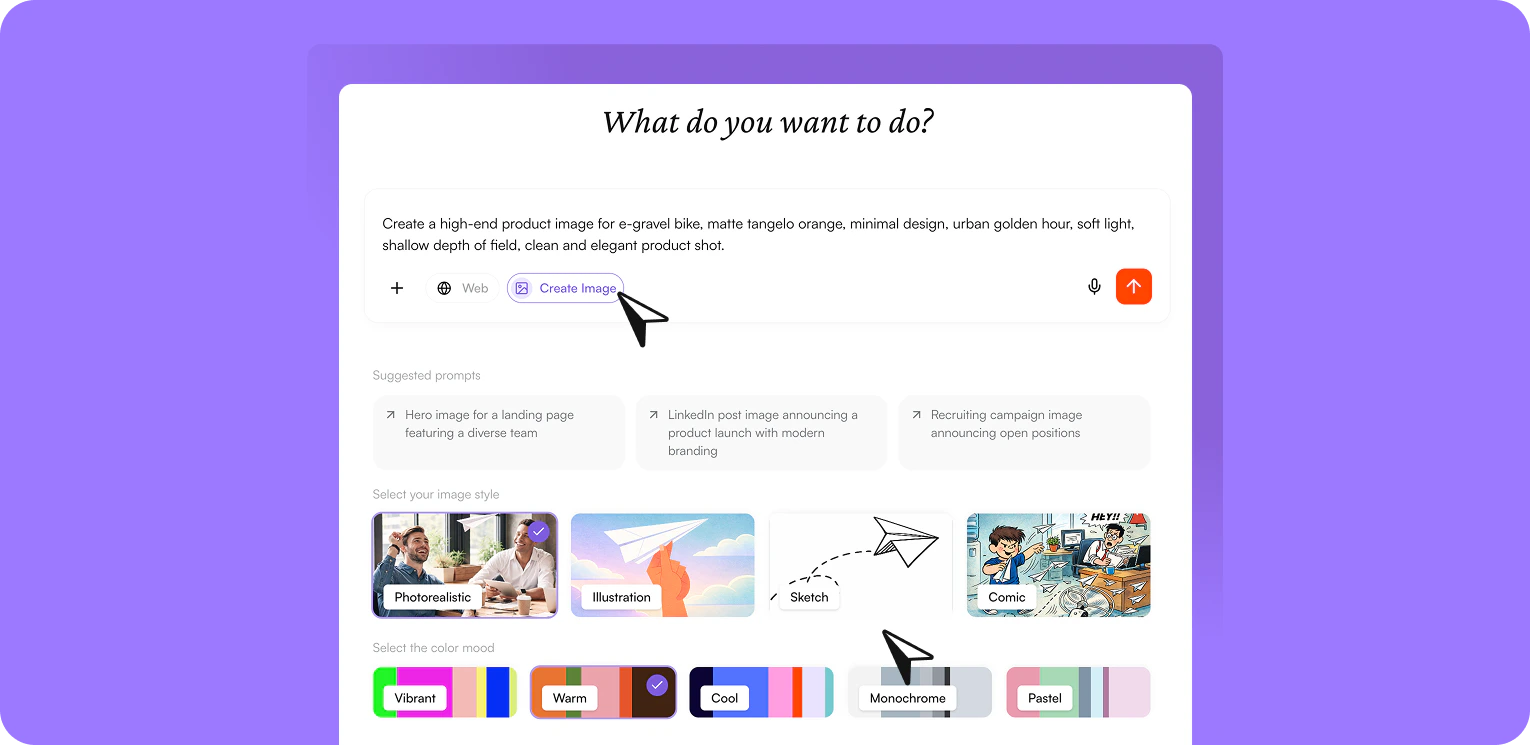 Open the chat and start the “Generate images” task.
Describe your desired image in the input field.\
Example: *Hero image for a landing page with a diverse team*
Select image style and color mood to guide the result, e.g. photorealistic, illustration, sketch, or comic as well as warm, cool, pastel, or monochrome.
Start the generation – nuwacom automatically creates a matching image based on your description.
## **How to use your own images as reference**
Upload your own images to edit, extend, or adjust them stylistically. The AI uses your image as a reference and applies changes such as style, background, or color mood directly.\
\
Try it with these example prompts:
* *“Change the background of this image to a bright office scene in flat design.”*
* *“Transform this team photo into an illustration in a sketchnote style.”*
* *“Remove the background and replace it with an abstract color surface in yellow and gray.”*
Open the chat and start the “Generate images” task.
Describe your desired image in the input field.\
Example: *Hero image for a landing page with a diverse team*
Select image style and color mood to guide the result, e.g. photorealistic, illustration, sketch, or comic as well as warm, cool, pastel, or monochrome.
Start the generation – nuwacom automatically creates a matching image based on your description.
## **How to use your own images as reference**
Upload your own images to edit, extend, or adjust them stylistically. The AI uses your image as a reference and applies changes such as style, background, or color mood directly.\
\
Try it with these example prompts:
* *“Change the background of this image to a bright office scene in flat design.”*
* *“Transform this team photo into an illustration in a sketchnote style.”*
* *“Remove the background and replace it with an abstract color surface in yellow and gray.”*
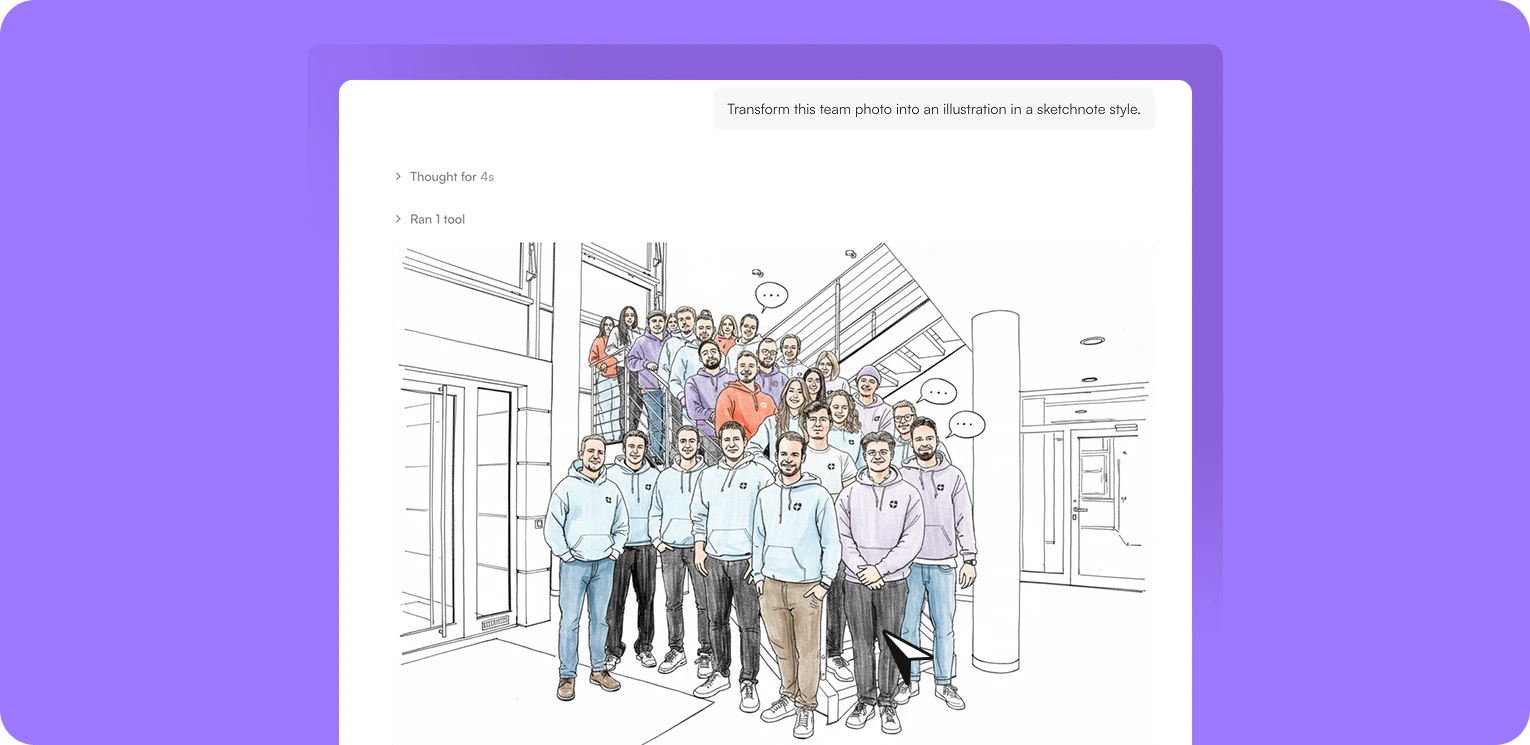 **How it works:**
Open the chat and start the “Generate images” task.
Upload your own image to use as a base or style reference
Describe in the input field how the reference image should be modified.\
Example: “Transform this team photo into an illustration in a sketchnote style.”
Optionally select image style and color mood to further guide the result, e.g. illustration, sketch, or comic as well as warm, cool, pastel, or monochrome.
Start the generation – nuwacom automatically edits your reference image based on your description.
## **Continue working with your image**
After creation, you can directly reuse your image and integrate it into your existing workflows:
* **Download image**\
Download the final image and use it for presentations, social media, or external communication.
* **Transfer content to a document**\
Add the image or its description to a document to further develop content, for example for concepts, campaigns, or internal materials.
* **Move to a project**\
Assign your image to a project to keep it organized and reuse it together with your team.
This ensures your image does not remain isolated but becomes part of your workflows.
## **Share and collaborate**
You can share the entire chat, including the generated image, with others.
This allows your colleagues to:
* view the image directly
* understand the original prompt
* create adjustments or new variations
This is especially helpful for gathering feedback, collaborating on content, and sharing best practices within your team.
## **Models**
The following models are available for image generation:
* **Imagen 4.0 (EU)** – EU-hosted, suitable for privacy-compliant use
* **Imagen 4.0 Fast (EU)** – EU-hosted, faster generation with slightly reduced quality
* **Gemini 2.5 Flash Image (Nano Banana) (EU)** – EU-hosted, fast and efficient for simple visuals
* **Gemini 3 Pro Image (Nano Banana Pro) (US)** – Global-hosted, high quality for more advanced images
* **Gemini 3.1 Flash Image (Nano Banana 2) (US)** – Global-hosted, fast generation with improved quality
By default, the Imagen 4.0 model is used (EU-hosted). With the role 'Admin' you can select a different image model in Workspace Settings> Models.
**How it works:**
Open the chat and start the “Generate images” task.
Upload your own image to use as a base or style reference
Describe in the input field how the reference image should be modified.\
Example: “Transform this team photo into an illustration in a sketchnote style.”
Optionally select image style and color mood to further guide the result, e.g. illustration, sketch, or comic as well as warm, cool, pastel, or monochrome.
Start the generation – nuwacom automatically edits your reference image based on your description.
## **Continue working with your image**
After creation, you can directly reuse your image and integrate it into your existing workflows:
* **Download image**\
Download the final image and use it for presentations, social media, or external communication.
* **Transfer content to a document**\
Add the image or its description to a document to further develop content, for example for concepts, campaigns, or internal materials.
* **Move to a project**\
Assign your image to a project to keep it organized and reuse it together with your team.
This ensures your image does not remain isolated but becomes part of your workflows.
## **Share and collaborate**
You can share the entire chat, including the generated image, with others.
This allows your colleagues to:
* view the image directly
* understand the original prompt
* create adjustments or new variations
This is especially helpful for gathering feedback, collaborating on content, and sharing best practices within your team.
## **Models**
The following models are available for image generation:
* **Imagen 4.0 (EU)** – EU-hosted, suitable for privacy-compliant use
* **Imagen 4.0 Fast (EU)** – EU-hosted, faster generation with slightly reduced quality
* **Gemini 2.5 Flash Image (Nano Banana) (EU)** – EU-hosted, fast and efficient for simple visuals
* **Gemini 3 Pro Image (Nano Banana Pro) (US)** – Global-hosted, high quality for more advanced images
* **Gemini 3.1 Flash Image (Nano Banana 2) (US)** – Global-hosted, fast generation with improved quality
By default, the Imagen 4.0 model is used (EU-hosted). With the role 'Admin' you can select a different image model in Workspace Settings> Models.