> ## Documentation Index
> Fetch the complete documentation index at: https://docs.nuwacom.ai/llms.txt
> Use this file to discover all available pages before exploring further.
# Connectors
> With nuwacom, you can connect your favorite business tools directly to your agents—making it easy to automate workflows and streamline your daily tasks.
## Which connectors are supported?
Connectors in nuwacom include both **Apps** and **MCP servers**, allowing you to connect your tools, give agents access to relevant data, and execute actions directly across your systems—from simple integrations to advanced, custom workflows.
### **Apps**
Apps are preconfigured integrations for common business tools. They cover typical use cases and can be set up quickly without additional configuration.
Once connected, agents can use these apps to access information, analyze content, and perform actions such as reading emails, retrieving files, or managing calendar events.
* Slack
* Microsoft Excel
* Microsoft Teams
* Google Docs
* Jira
* Google Sheets
* Pipedrive
* Google Calendar
* Notion
* Confluence
* OneDrive
* Google Drive
* SharePoint
* Gmail
* Microsoft Outlook
### **MCP Servers**
MCP servers enable deeper and more flexible integrations beyond standard apps.
MCP stands for Model Context Protocol and provides a standardized way to connect external systems. This allows agents to not only access data but also execute more complex and granular actions across systems.
MCP servers are ideal for advanced use cases, custom integrations, and technical workflows. They are primarily used by administrators and advanced teams. Admins can choose from a list of common MCP servers or add custom servers manually if needed.
* Asana
* Astro
* Atlassian
* Browser Use
* Canva
* Cloudflare
* Context7
* DeepWiki
* GitHub
* Hugging Face
* Linear
* Microsoft Learn Docs
* Mintlify
* Neon
* Notion
* PostHog
* Postman
* Render
* Replicate
* Semgrep
* Sentry
* Stripe
* Superglue
> ***Note:*** In case you don’t see any of those connectors, please reach out to your account admin or to [*support@nuwacom.ai*](mailto:support@nuwacom.ai)
## Connect an MCP server
You can connect any MCP server—either one from the catalog above or a custom server you host yourself—from your workspace settings. nuwacom guides you through a short wizard: it inspects the server, helps you authenticate, and lets you pick exactly which tools your agents may use.
### Step by step
1. Navigate to your workspace settings and select **Connectors**, then click **Add server**.
2. Enter the server **URL** (and, optionally, a display name) and click **Verify**. nuwacom inspects the server and detects its transport type (StreamableHTTP or SSE), whether authentication is required, and which authentication method it uses.
3. Name the connection and provide the credentials for the detected authentication method (see [Authentication methods](#authentication-methods)).
4. Click **Test connection**. nuwacom connects to the server and discovers the available tools. If it fails, the error returned by the server is shown so you can adjust your settings.
5. **Select the tools** you want to enable for your agents, then confirm to create the connection.
You can change the enabled tools, rename, share, or remove a connection at any time from **Connectors** in your workspace settings.
### Authentication methods
nuwacom auto-detects how a server expects you to authenticate and only shows the relevant fields:
Public servers that don't require credentials. Just verify the URL and continue.
The server is protected by a static API key or bearer token. Select a stored credential to use for the connection. (For OAuth servers, you can also switch to this via **Use API key / token instead** in the advanced options.)
The server uses OAuth 2.0. nuwacom suggests the best mode based on the server's discovery metadata—see the OAuth modes below.
#### OAuth modes
When a server uses OAuth, you can choose how nuwacom obtains a token:
Sign in through your browser. The client registers itself automatically with the provider via Dynamic Client Registration (DCR)—no credentials to enter. This works for most servers.
Sign in through your browser using a **Client ID** and **Secret** from an OAuth app you registered with the provider. Use this when the server does not support automatic registration.
Connects directly with a **Client ID** and **Secret**—**no browser login**. Use this for machine-to-machine (M2M) access such as CI/CD pipelines, server-to-server integrations, and automated workflows. Only available for servers that support the OAuth client credentials grant.
Enter the **Authorization URL**, **Token URL**, and your **Client ID** and **Secret** yourself. Use this when a server does not expose its OAuth discovery metadata.
Need to limit access? Open **Advanced settings** in the connection step to specify custom OAuth **scopes** (space- or comma-separated). Leave it empty to request the scopes the server advertises.
> ***Note:*** Not every server supports every mode. Many hosted MCP servers only offer browser-based login; machine-to-machine (M2M) access requires the server to support the OAuth client credentials grant.
***
## Watch the video to learn how to connect Slack with your agents.
***
## Manage connectors in your workspace
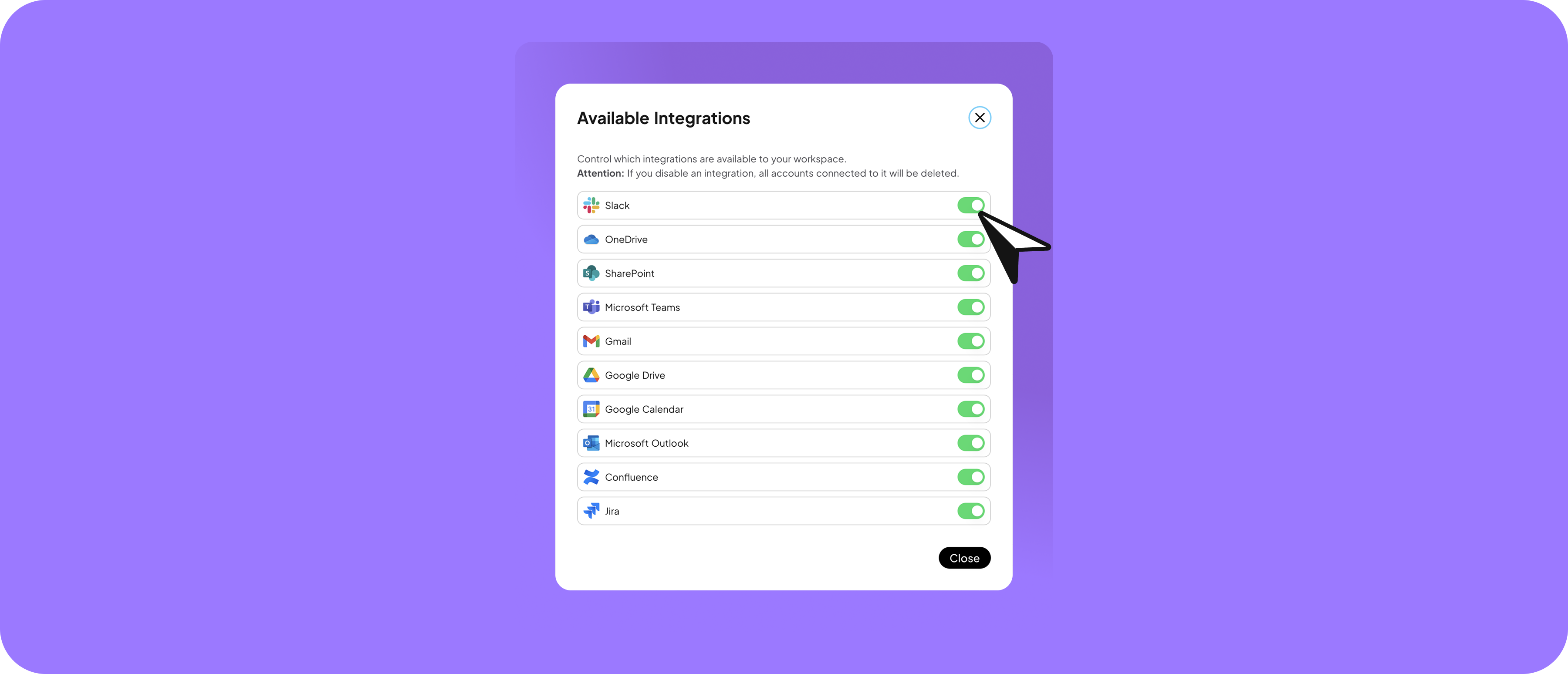
Make connectors available in your workspace while staying secure and compliant. Decide which connectors can be used by your team and within the workspace.
To manage connectors:
1. Navigate to your workspace settings.
2. Select "Connectors" in the settings navigation.
3. Click on "Manage connectors."
4. Toggle connectors on or off to control which ones are accessible within the workspace.
***
## Connect connectors
Bring files and information from connected tools (such as Google Drive, SharePoint, and more) into chats as knowledge, and enable them to empower agents with actions.
You have two options to connect connectors:
### Within the workspace settings
1. Navigate to your workspace settings.
2. Select "connectors" in the settings navigation.
3. Click under "Available connectors" on the connectors you'd like to connect
4. And go through the authentification process
5. Make sure to select the right workspace if more than one is available
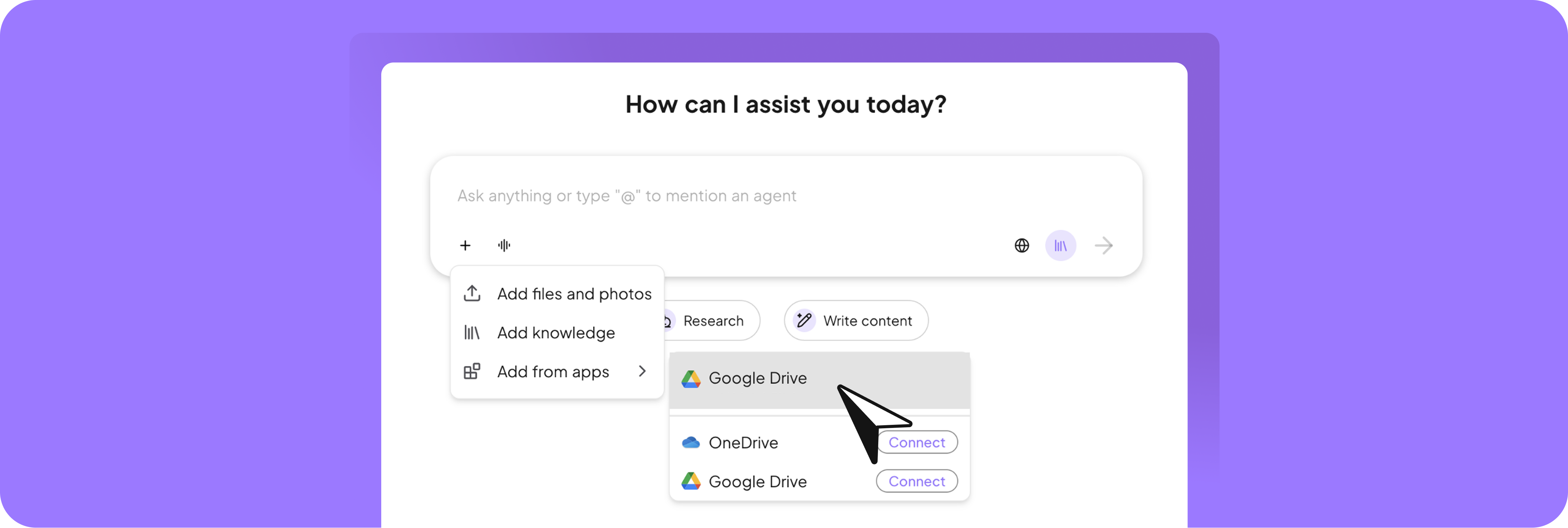
### Within the chat
1. Click on the Plus Icon in the chat input
2. Hover over "Add from apps"
3. Click on the "Connect" Button next to the app, you'd like to connect
***
## Share connectors
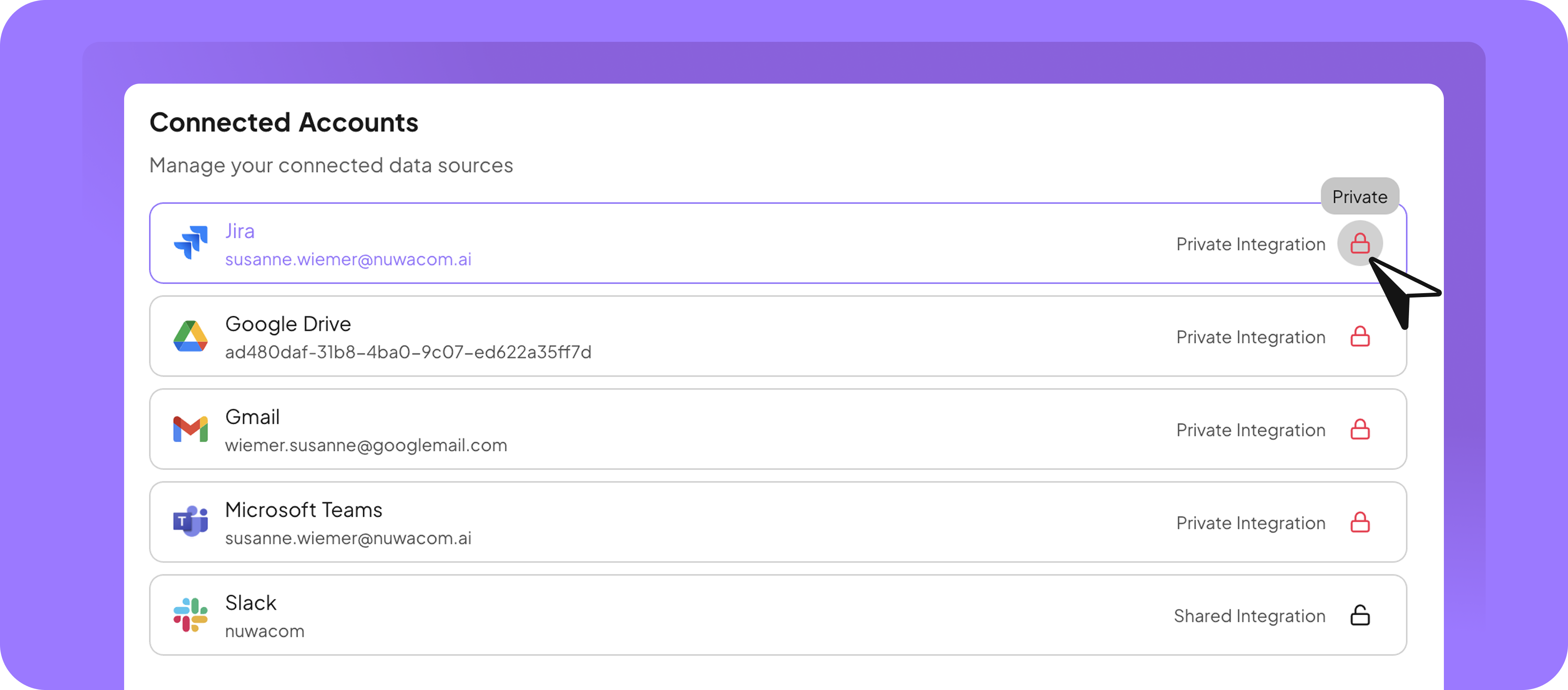
Decide whether a connector is private or shared with team members or the entire workspace. Choose carefully which connectors to share, as sharing will grant access to all available data.
To share connectors:
1. Navigate to your workspace settings.
2. Select "Connectors" in the settings navigation.
3. In the "Connected Accounts" list, click the lock icon next to the connector you want to share.
4. In the dialog, select team members or the workspace, then click "Done."
***
## Supported actions of connectors
### Slack
Facilitate seamless team communication and collaboration through automated messaging and channel management.
* **List channels**
* **Use case:** Retrieve a list of all available channels in a Slack workspace.
* **Example:** A user wants to send a project update to a specific channel. The agent retrieves all available channels and presents them for selection.
* **Send message**
* **Use case:** Automatically send messages to a Slack channel.
* **Example:** After completing a milestone, the agent posts a message in the project channel, including the milestone details and next steps.
* **Send direct messages to a user**
* **Use case:** Notify specific team members directly.
* **Example:** The agent sends a reminder to a team member about an overdue task via Slack direct message.
* **Get user by email**
* **Use case:** Retrieve user information using their email address.
* **Example:** Before assigning a task, the agent checks if the user is part of the Slack workspace using their email.
* **List members**
* **Use case:** Retrieve a list of members in a specific Slack channel.
* **Example:** The agent identifies all members of a project channel to ensure the right people receive updates.
### OneDrive
Automated file and folder management within workflows.
* **Get file by ID**
* **Use Case:** Retrieving specific metadata of a file.
* **Example:** An agent retrieves metadata such as the creation date and author of a file to confirm its relevance for a presentation or a client meeting.
* **Save file**
* **Use Case:** Automatically uploading or saving a file to OneDrive.
* **Example:** After generating a report, an agent automatically saves the finished document to the relevant project folder so that it is available to the entire team.
* **List contents**
* **Use Case:** Automatically displaying the contents of a folder.
* **Example:** A user asks the AI agent to list all files in the "Q3 Materials" folder. The agent retrieves the contents and displays the file names together with metadata in the chat.
* **Create folder**
* **Use Case:** Automatically creating new folder structures.
* **Example:** When setting up a new client project, an agent automatically creates a OneDrive folder named after the client, divided into subfolders such as "Briefing", "Contracts", and "Final Presentations".
* **Get folder by ID**
* **Use Case:** Accessing a specific folder and its properties.
* **Example:** An agent receives a folder ID from a previous step and checks whether this folder has already been moved or deleted before accessing it.
* **Search folders**
* **Use Case:** Searching for folders based on name or tags.
* **Example:** The agent searches OneDrive for folders with matching names or tags such as "Summer Event 2024" and displays results, including folder size and last modified date.
* **Move folders**
* **Use Case:** Automatically moving folders.
* **Example:** An archiving workflow detects that a project is complete. The associated folder is automatically moved to the archive directory "Completed Projects".
* **Delete folders**
* **Use Case:** Automatically deleting folders that are no longer needed.
* **Example:** An agent deletes temporary project folders that are older than 90 days and no longer contain relevant files – for example from preparation workshops or events.
* **Download file**
* **Use Case:** Providing a file via a download URL.
* **Example:** An agent generates a download URL for a requested file and provides it to a user or a downstream workflow step in order to further process or send the file.
* **Search files**
* **Use Case:** Searching for files based on name, type, or content.
* **Example:** The agent searches OneDrive for all files containing the term "Offer" in their name and displays the matches, including location and modification date, in the chat.
* **List drives**
* **Use Case:** Listing the available drives.
* **Example:** At the start of a workflow, an agent retrieves all available drives in order to select the correct target drive for subsequent file and folder operations.
### SharePoint
Automate collaboration in projects and structured data storage.
* **Create item**
* **Use case:** Automatic creation of a new entry in a SharePoint list
* **Example:** When a new project is created in nuwacom, an agent automatically creates an entry in the SharePoint list "Project Overview" – including title, project manager, start date, and link to the nuwacom project page.
* **Update item**
* **Use case:** Automatically transfer status updates to SharePoint
* **Example:** If the status of a project in nuwacom is set to "Completed," an agent updates the corresponding item in SharePoint and adds the completion date, for example.
* **Get item by ID**
* **Use case:** Retrieve information about a specific record
* **Example:** An agent checks whether the project "XY-231" already exists in SharePoint by specifically retrieving the entry by ID and reading fields such as status or stored documents.
* **Get items in a list**
* **Use case:** Read and process contents of a list
* **Example:** The agent compiles the relevant entries into a structured table, including project names, deadlines, and statuses, and shares it via email or Teams.
* **Delete item**
* **Use case:** Remove outdated or incorrect entries
* **Example:** The agent identifies outdated entries and prompts the user for confirmation before removing them from the 'Archive' list.
* **Create list**
* **Use case:** Automatically create new lists
* **Example:** When a new area or project starts, a new SharePoint list is automatically created – for example, "Q4 Campaigns" with predefined columns like title, status, responsible person, deadline.
* **Get list by ID**
* **Use case:** Check for the existence of specific lists
* **Example:** Before an agent creates a new list, it checks by ID whether a list named "Campaigns 2025" already exists. If so, it is used instead of creating a new one.
* **Get lists**
* **Use case:** Overview of existing SharePoint lists
* **Example:** The user selects a list in the chat to work with. The agent first retrieves all available lists and offers them for selection.
* **Get list columns**
* **Use case:** Retrieve columns of a list to work with them
* **Example:** An agent wants to create a new entry in a list and first reads the column structure to dynamically generate a suitable input form in nuwacom.
### Microsoft Teams Messages
Automated communication and team management directly from workflows.
* **Message in channel**
* **Use case:** Automatically send a message in a Teams channel
* **Example:** After successfully completing a milestone, an agent automatically posts an update in the project channel, including status, responsible person, and link to documentation.
* **Message in chat**
* **Use case:** Send a direct message to specific people
* **Example:** An agent recognizes that a user has an overdue task and automatically sends them a personal reminder via Teams chat.
* **User by email**
* **Use case:** Retrieve user information via email address
* **Example:** An agent checks whether a specific employee is already in the Teams system to later include them in a group or communication.
* **Team list**
* **Use case:** Retrieve an overview of all existing teams
* **Example:** Before starting a new project, the agent asks if there is already a suitable team. To do this, it retrieves the team list and offers it for selection.
* **List channel**
* **Use case:** Display an overview of channels in a specific team
* **Example:** A user wants to place a message specifically in a channel. The agent retrieves all available channels in the selected team and offers them for selection.
* **List members**
* **Use case:** Determine team members for targeted communication
* **Example:** The agent retrieves the member list, filters out inactive members, and sends a targeted notification to the active participants.
### Microsoft Outlook Emails
Automation of calendar and email processes in everyday business.
* **Get message**
* **Use case**: Retrieve and analyze emails
* **Example:** The agent searches the Outlook mailbox for a specific message, such as for contract approval or open invoices.
* **Send message**
* **Use case:** Automatically send emails
* **Example:** After a successfully completed project, the agent sends a thank-you email to the customer – including the final report as an attachment.
* **Get event**
* **Use case:** Query all planned appointments
* **Example:** A user asks: "What's on today?" – the agent searches the Outlook calendar and shows a daily overview.
* **Get event by ID**
* **Use case:** Retrieve a specific appointment using its ID
* **Example:** The agent checks whether a planned customer appointment is already entered in the calendar and whether relevant details such as agenda and location are included.
* **Create event**
* **Use case:** Automatically create appointments
* **Example:** After entering a follow-up call in nuwacom, an agent directly creates an appointment in the Outlook calendar of the relevant person.
* **Update event**
* **Use case:** Adjust existing appointments
* **Example:** If the location or time of a meeting changes, the agent updates the Outlook appointment and informs all participants.
* **Delete event**
* **Use case:** Automatically delete appointments
* **Example:** If a workshop is canceled, the agent deletes the Outlook appointment for all participants and optionally sends a cancellation email.
### Gmail Emails
Automation of email communication and contact management.
* **Send email**
* **Use case:** Automatically send emails
* **Example:** After filling out a feedback form, a customer automatically receives a personalized thank-you email with further information or a link to the case study.
* **Get email by ID**
* **Use case:** Retrieve a specific email using its ID
* **Example:** An agent checks whether a specific confirmation email has already been received, such as for appointment booking or offer acceptance.
* **Search for email**
* **Use case:** Search emails based on specific criteria
* **Example:** The agent searches emails from '[**noreply@signaturdienst.de**](mailto:noreply@signaturdienst.de)' within the last 30 days to confirm receipt of digital contract documents.
* **Delete email**
* **Use case:** Automatically delete emails
* **Example:** The agent identifies emails with the subject 'System Notification' older than 30 days and moves them to a temporary folder for review before deletion.
* **Create a contact**
* **Use case:** Automatically create new contacts
* **Example:** When a new lead is received in nuwacom, a contact is automatically created in the Gmail address book – including company name, position, and phone number.
* **Get contact by resource name**
* **Use case:** Specifically retrieve an existing contact
* **Example:** The agent accesses a stored contact to use the correct email address for upcoming communication, for example.
* **Search for contact**
* **Use case:** Search for contact information based on names or email
* **Example:** Before sending a message, the agent checks whether a specific contact person is already saved as a contact in the system.
* **Delete a contact**
* **Use case:** Remove outdated contacts
* **Example:** A user automatically deletes outdated or duplicate contacts from their Gmail address book, for example, as part of a CRM reconciliation.
* **Create draft**
* **Use case:** Save prepared emails as drafts
* **Example:** An agent automatically creates an email draft for a follow-up after a meeting, which the user can later review and send manually.
### Google Drive Docs
Automated file and folder handling for project work, knowledge management, and documentation.
* **Get file by ID**
* **Use case:** Retrieve a specific file using its ID
* **Example:** The agent checks whether a final offer presentation has already been uploaded and shows metadata such as name, creation date, and size.
* **Export doc**
* **Use case:** Export a Google document as PDF or DOCX
* **Example:** An AI agent downloads an automatically created Google Doc and saves it as a PDF for sharing with the customer.
* **Save file**
* **Use case:** Automatically save files in Google Drive
* **Example:** After completing a customer project, the agent automatically saves the final report in the associated Drive folder.
* **List file**
* **Use case:** List files in a folder.
* **Example:** The agent shows all files stored in the folder "Event Photos 2024," sorted by upload date or file type.
* **Get folder by ID**
* **Use case:** Access a specific folder by ID
* **Example:** A workflow specifically accesses the folder "Sales/Offers 2025" to store or analyze new documents there.
* **Create folder**
* **Use case:** Dynamically create folder structures
* **Example:** When creating a new project, the agent automatically creates a Drive folder with subdirectories like "Briefing," "Approvals," and "Invoices."
* **Move folder**
* **Use case:** Automatically move folders
* **Example:** As soon as a project moves into the billing phase, the agent moves the associated folder from "In Progress" to "Completed."
* **Search for folder**
* **Use case:** Specifically search folders by name or attributes
* **Example:** The user asks in the chat: "Where is the folder for the HR strategy?" – the agent searches Google Drive for matching folders and returns results.
* **Delete folder**
* **Use case:** Remove outdated or empty folders
* **Example:** An archiving process automatically deletes temporary folders older than 60 days that no longer contain relevant files.
### Google Calendar Events
Automated appointment management, availability queries, and contact access for seamless collaboration.
* **Create event**
* **Use case:** Automatically create appointments
* **Example:** After a successful booking via a form, an agent automatically creates a calendar entry with title, location, participants, and video link.
* **Update event**
* **Use case:** Update existing appointments
* **Example**: If the time or location of a workshop changes, the agent automatically adjusts the corresponding entry in Google Calendar.
* **List event**
* **Use case:** Retrieve all upcoming appointments
* **Example:** The agent shows the user all appointments for the current week, filtered by specific keywords like "Strategy," "Sales," or "HR."
* **Get event by ID**
* **Use case:** Specifically retrieve individual appointments
* **Example:** A workflow needs details about a specific calendar entry, such as to add agenda items or participant lists.
* **Delete event**
* **Use case:** Delete appointments
* **Example:** If a meeting is canceled, an agent automatically removes the corresponding calendar entry to avoid duplicate communication.
* **Get contacts**
* **Use case:** Retrieve contact list
* **Example:** An agent accesses stored contacts to suggest them for appointment bookings or invit\_a\_tions.
* **Search contacts**
* **Use case:** Search contacts based on names or email addresses
* **Example:** The user enters only the first name in the chat, and the agent finds the matching person from the Google contact directory.
* **List directory people**
* **Use case:** Search the directory of all employees
* **Example:** The agent accesses the Google Workspace directory to list all marketing employees for a survey, for example.
* **Search directory people**
* **Use case:** Find individual people in the directory
* **Example:** A user wants to know if a new colleague is listed in the Google directory to invite them to an appointment.
* **List other contacts**
* **Use case:** Access additional contacts not stored in the main directory
* **Example:** An agent suggests external partners or customers with whom email contact has already been made but who are not saved in the address book.
* **Search other**
* **Use case:** Search for previous communication partners
* **Example:** The user remembers the first name of an external participant – the agent searches in "other contacts" and shows possible matches.
* **Get availability**
* **Use case:** Automatically check availability
* **Example:** The agent searches for free time slots among all invited people and suggests suitable slots for a meeting – including consideration of time zones and preferences.
### Jira Issues
Streamline project management and issue tracking with automated workflows and real-time updates.
* **Create issues**
* **Use case:** Automatically create a new issue in Jira.
* **Example:** When a bug is reported in a customer support system, the agent creates a corresponding Jira issue with all relevant details.
* **Update issues**
* **Use case:** Modify existing Jira issues with updated information.
* **Example:** If a task's priority changes, the agent updates the Jira issue to reflect the new priority.
* **Get issue by key**
* **Use case:** Retrieve details of a specific Jira issue using its key.
* **Example:** The agent fetches the status and comments of a Jira issue to include in a project update.
* **Filter issues**
* **Use case:** Retrieve a list of issues based on predefined filters.
* **Example:** The agent generates a report of all open issues assigned to a specific team for the weekly review.
* **Search by JQL**
* **Use case:** Perform advanced searches using Jira Query Language (JQL).
* **Example:** The agent identifies all issues tagged with "urgent" and "customer-facing" for immediate action.
### Confluence
Automated knowledge documentation and access to internal content for better collaboration.
* **Create page**
* **Use case:** Automatically create new pages
* **Example:** After a project completion, an agent automatically creates a new page in the Confluence space "Projects," including title, brief summary, and link to results.
* **Update page**
* **Use case:** Update existing pages
* **Example:** If a project date or contact person changes, the agent automatically adjusts the associated Confluence page.
* **Get page by ID**
* **Use case:** Specifically retrieve a certain page
* **Example:** The agent retrieves a page by ID to read or further process content – for example, for a report or linking in nuwacom.
* **Get pages in space**
* **Use case:** Display an overview of all pages in a specific area
* **Example:** The user wants to view all documentation in the "IT Security" area – the agent lists all pages in the corresponding space.
* **Get pages by label**
* **Use case**: Filter thematically appropriate pages
* **Example:** The agent retrieves all pages with the label "Onboarding" to generate a central overview for new employees.
* **Search pages**
* **Use case:** Search pages based on keywords
* **Example:** The user asks: "Is there already a template for offer presentations?" – the agent searches all pages for relevant terms and shows the results.
* **Delete page**
* **Use case:** Delete outdated content
* **Example:** An archiving workflow recognizes that a page has not been updated for two years, has no links or accesses – and automatically deletes it after inquiry.
* **Get space by ID**
* **Use case:** Access a specific space
* **Example:** An agent specifically accesses the "Marketing" space to create a new page or read existing pages there.
* **Search spaces**
* **Use case:** Search Confluence areas by name or topics
* **Example:** The user wants to know if there is already a space for "Q4 Campaigns" – the agent searches all spaces and shows results.
* **Get blog posts**
* **Use case:** Retrieve posts from the Confluence blog
* **Example:** The agent shows the user all internal blog posts from the last two months – for example, for an internal monthly briefing or HR communication.
***
## How to add actions to an agent
Here you'll find two examples how to connect actions to an agent
### Slack messaging
To send messages to a Slack channel, add the following two actions to your agent:
* List channels
* Send message
Make sure that your instructions – especially the tasks – are well defined. Here is an example for the ##Action:
1. Receive a keyword or topic from the user.
2. Create a detailed blog article draft based on the keyword or topic
3. Present the draft to the user for review and approval.
4. Upon receiving approval, ask for the Slack channel to send a short message and inform the team of the new article.
### Gmail mailing
Add the following actions to retrieve the latest emails and send responses via Gmail:
* Gmail – Search for email
* Gmail – Get email by ID
* Gmail – Send email
Make sure that your instructions – especially the tasks – are well defined. Here is an example for the ##Action:
1. Check for newest email in my gmail account
2. Create a reply
3. Wait for the approval by the user
4. Send the approved reply via Gmail to the sender
 To manage connectors:
1. Navigate to your workspace settings.
2. Select "Connectors" in the settings navigation.
3. Click on "Manage connectors."
4. Toggle connectors on or off to control which ones are accessible within the workspace.
***
## Connect connectors
Bring files and information from connected tools (such as Google Drive, SharePoint, and more) into chats as knowledge, and enable them to empower agents with actions.
To manage connectors:
1. Navigate to your workspace settings.
2. Select "Connectors" in the settings navigation.
3. Click on "Manage connectors."
4. Toggle connectors on or off to control which ones are accessible within the workspace.
***
## Connect connectors
Bring files and information from connected tools (such as Google Drive, SharePoint, and more) into chats as knowledge, and enable them to empower agents with actions.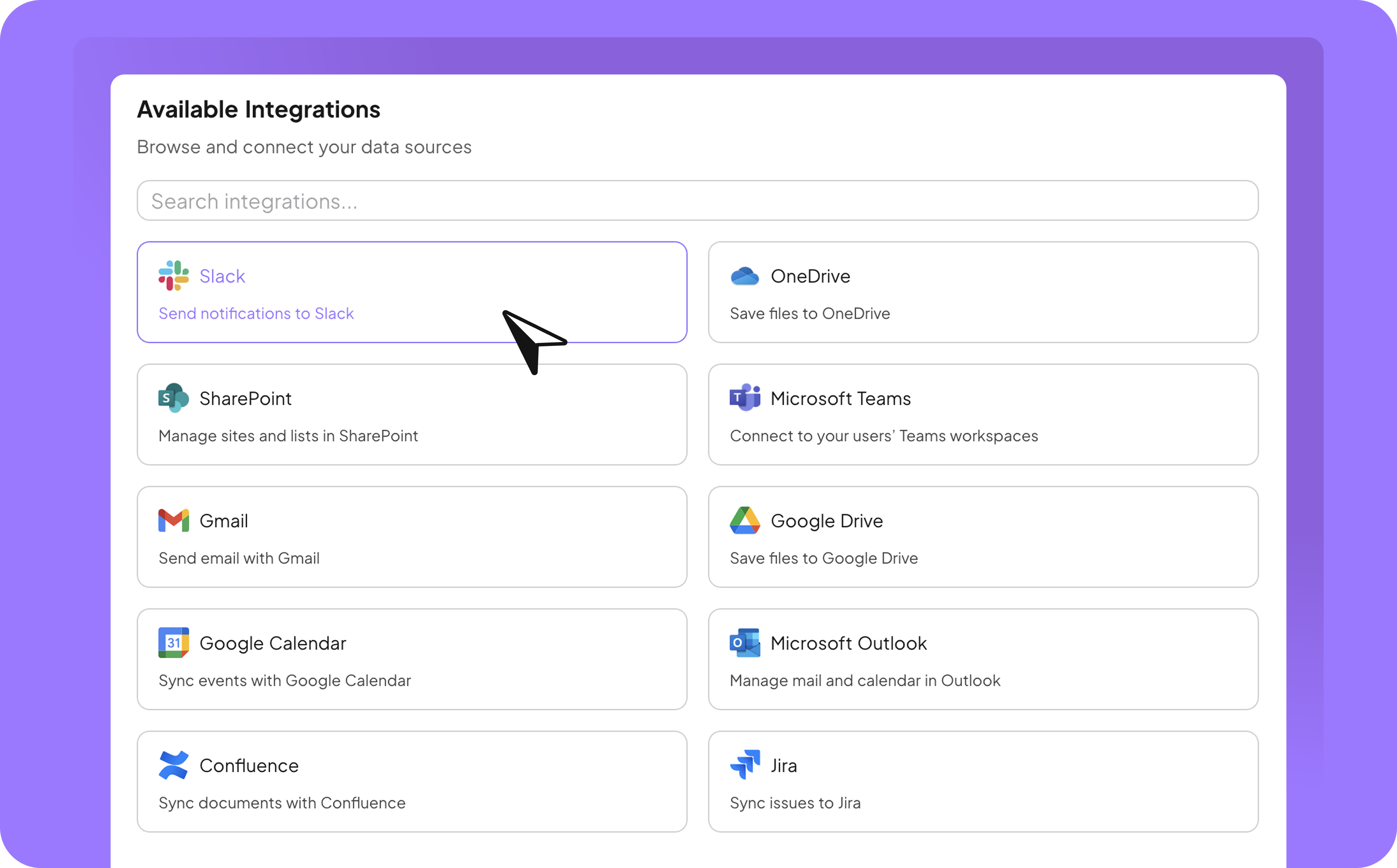 ### Within the chat
1. Click on the Plus Icon in the chat input
2. Hover over "Add from apps"
3. Click on the "Connect" Button next to the app, you'd like to connect
### Within the chat
1. Click on the Plus Icon in the chat input
2. Hover over "Add from apps"
3. Click on the "Connect" Button next to the app, you'd like to connect
 ***
## Share connectors
Decide whether a connector is private or shared with team members or the entire workspace. Choose carefully which connectors to share, as sharing will grant access to all available data.
***
## Share connectors
Decide whether a connector is private or shared with team members or the entire workspace. Choose carefully which connectors to share, as sharing will grant access to all available data.
 To share connectors:
1. Navigate to your workspace settings.
2. Select "Connectors" in the settings navigation.
3. In the "Connected Accounts" list, click the lock icon next to the connector you want to share.
4. In the dialog, select team members or the workspace, then click "Done."
***
## Supported actions of connectors
### Slack
Facilitate seamless team communication and collaboration through automated messaging and channel management.
* **List channels**
* **Use case:** Retrieve a list of all available channels in a Slack workspace.
* **Example:** A user wants to send a project update to a specific channel. The agent retrieves all available channels and presents them for selection.
* **Send message**
* **Use case:** Automatically send messages to a Slack channel.
* **Example:** After completing a milestone, the agent posts a message in the project channel, including the milestone details and next steps.
* **Send direct messages to a user**
* **Use case:** Notify specific team members directly.
* **Example:** The agent sends a reminder to a team member about an overdue task via Slack direct message.
* **Get user by email**
* **Use case:** Retrieve user information using their email address.
* **Example:** Before assigning a task, the agent checks if the user is part of the Slack workspace using their email.
* **List members**
* **Use case:** Retrieve a list of members in a specific Slack channel.
* **Example:** The agent identifies all members of a project channel to ensure the right people receive updates.
### OneDrive
Automated file and folder management within workflows.
* **Get file by ID**
* **Use Case:** Retrieving specific metadata of a file.
* **Example:** An agent retrieves metadata such as the creation date and author of a file to confirm its relevance for a presentation or a client meeting.
* **Save file**
* **Use Case:** Automatically uploading or saving a file to OneDrive.
* **Example:** After generating a report, an agent automatically saves the finished document to the relevant project folder so that it is available to the entire team.
* **List contents**
* **Use Case:** Automatically displaying the contents of a folder.
* **Example:** A user asks the AI agent to list all files in the "Q3 Materials" folder. The agent retrieves the contents and displays the file names together with metadata in the chat.
* **Create folder**
* **Use Case:** Automatically creating new folder structures.
* **Example:** When setting up a new client project, an agent automatically creates a OneDrive folder named after the client, divided into subfolders such as "Briefing", "Contracts", and "Final Presentations".
* **Get folder by ID**
* **Use Case:** Accessing a specific folder and its properties.
* **Example:** An agent receives a folder ID from a previous step and checks whether this folder has already been moved or deleted before accessing it.
* **Search folders**
* **Use Case:** Searching for folders based on name or tags.
* **Example:** The agent searches OneDrive for folders with matching names or tags such as "Summer Event 2024" and displays results, including folder size and last modified date.
* **Move folders**
* **Use Case:** Automatically moving folders.
* **Example:** An archiving workflow detects that a project is complete. The associated folder is automatically moved to the archive directory "Completed Projects".
* **Delete folders**
* **Use Case:** Automatically deleting folders that are no longer needed.
* **Example:** An agent deletes temporary project folders that are older than 90 days and no longer contain relevant files – for example from preparation workshops or events.
* **Download file**
* **Use Case:** Providing a file via a download URL.
* **Example:** An agent generates a download URL for a requested file and provides it to a user or a downstream workflow step in order to further process or send the file.
* **Search files**
* **Use Case:** Searching for files based on name, type, or content.
* **Example:** The agent searches OneDrive for all files containing the term "Offer" in their name and displays the matches, including location and modification date, in the chat.
* **List drives**
* **Use Case:** Listing the available drives.
* **Example:** At the start of a workflow, an agent retrieves all available drives in order to select the correct target drive for subsequent file and folder operations.
### SharePoint
Automate collaboration in projects and structured data storage.
* **Create item**
* **Use case:** Automatic creation of a new entry in a SharePoint list
* **Example:** When a new project is created in nuwacom, an agent automatically creates an entry in the SharePoint list "Project Overview" – including title, project manager, start date, and link to the nuwacom project page.
* **Update item**
* **Use case:** Automatically transfer status updates to SharePoint
* **Example:** If the status of a project in nuwacom is set to "Completed," an agent updates the corresponding item in SharePoint and adds the completion date, for example.
* **Get item by ID**
* **Use case:** Retrieve information about a specific record
* **Example:** An agent checks whether the project "XY-231" already exists in SharePoint by specifically retrieving the entry by ID and reading fields such as status or stored documents.
* **Get items in a list**
* **Use case:** Read and process contents of a list
* **Example:** The agent compiles the relevant entries into a structured table, including project names, deadlines, and statuses, and shares it via email or Teams.
* **Delete item**
* **Use case:** Remove outdated or incorrect entries
* **Example:** The agent identifies outdated entries and prompts the user for confirmation before removing them from the 'Archive' list.
* **Create list**
* **Use case:** Automatically create new lists
* **Example:** When a new area or project starts, a new SharePoint list is automatically created – for example, "Q4 Campaigns" with predefined columns like title, status, responsible person, deadline.
* **Get list by ID**
* **Use case:** Check for the existence of specific lists
* **Example:** Before an agent creates a new list, it checks by ID whether a list named "Campaigns 2025" already exists. If so, it is used instead of creating a new one.
* **Get lists**
* **Use case:** Overview of existing SharePoint lists
* **Example:** The user selects a list in the chat to work with. The agent first retrieves all available lists and offers them for selection.
* **Get list columns**
* **Use case:** Retrieve columns of a list to work with them
* **Example:** An agent wants to create a new entry in a list and first reads the column structure to dynamically generate a suitable input form in nuwacom.
### Microsoft Teams Messages
Automated communication and team management directly from workflows.
* **Message in channel**
* **Use case:** Automatically send a message in a Teams channel
* **Example:** After successfully completing a milestone, an agent automatically posts an update in the project channel, including status, responsible person, and link to documentation.
* **Message in chat**
* **Use case:** Send a direct message to specific people
* **Example:** An agent recognizes that a user has an overdue task and automatically sends them a personal reminder via Teams chat.
* **User by email**
* **Use case:** Retrieve user information via email address
* **Example:** An agent checks whether a specific employee is already in the Teams system to later include them in a group or communication.
* **Team list**
* **Use case:** Retrieve an overview of all existing teams
* **Example:** Before starting a new project, the agent asks if there is already a suitable team. To do this, it retrieves the team list and offers it for selection.
* **List channel**
* **Use case:** Display an overview of channels in a specific team
* **Example:** A user wants to place a message specifically in a channel. The agent retrieves all available channels in the selected team and offers them for selection.
* **List members**
* **Use case:** Determine team members for targeted communication
* **Example:** The agent retrieves the member list, filters out inactive members, and sends a targeted notification to the active participants.
### Microsoft Outlook Emails
Automation of calendar and email processes in everyday business.
* **Get message**
* **Use case**: Retrieve and analyze emails
* **Example:** The agent searches the Outlook mailbox for a specific message, such as for contract approval or open invoices.
* **Send message**
* **Use case:** Automatically send emails
* **Example:** After a successfully completed project, the agent sends a thank-you email to the customer – including the final report as an attachment.
* **Get event**
* **Use case:** Query all planned appointments
* **Example:** A user asks: "What's on today?" – the agent searches the Outlook calendar and shows a daily overview.
* **Get event by ID**
* **Use case:** Retrieve a specific appointment using its ID
* **Example:** The agent checks whether a planned customer appointment is already entered in the calendar and whether relevant details such as agenda and location are included.
* **Create event**
* **Use case:** Automatically create appointments
* **Example:** After entering a follow-up call in nuwacom, an agent directly creates an appointment in the Outlook calendar of the relevant person.
* **Update event**
* **Use case:** Adjust existing appointments
* **Example:** If the location or time of a meeting changes, the agent updates the Outlook appointment and informs all participants.
* **Delete event**
* **Use case:** Automatically delete appointments
* **Example:** If a workshop is canceled, the agent deletes the Outlook appointment for all participants and optionally sends a cancellation email.
### Gmail Emails
Automation of email communication and contact management.
* **Send email**
* **Use case:** Automatically send emails
* **Example:** After filling out a feedback form, a customer automatically receives a personalized thank-you email with further information or a link to the case study.
* **Get email by ID**
* **Use case:** Retrieve a specific email using its ID
* **Example:** An agent checks whether a specific confirmation email has already been received, such as for appointment booking or offer acceptance.
* **Search for email**
* **Use case:** Search emails based on specific criteria
* **Example:** The agent searches emails from '[**noreply@signaturdienst.de**](mailto:noreply@signaturdienst.de)' within the last 30 days to confirm receipt of digital contract documents.
* **Delete email**
* **Use case:** Automatically delete emails
* **Example:** The agent identifies emails with the subject 'System Notification' older than 30 days and moves them to a temporary folder for review before deletion.
* **Create a contact**
* **Use case:** Automatically create new contacts
* **Example:** When a new lead is received in nuwacom, a contact is automatically created in the Gmail address book – including company name, position, and phone number.
* **Get contact by resource name**
* **Use case:** Specifically retrieve an existing contact
* **Example:** The agent accesses a stored contact to use the correct email address for upcoming communication, for example.
* **Search for contact**
* **Use case:** Search for contact information based on names or email
* **Example:** Before sending a message, the agent checks whether a specific contact person is already saved as a contact in the system.
* **Delete a contact**
* **Use case:** Remove outdated contacts
* **Example:** A user automatically deletes outdated or duplicate contacts from their Gmail address book, for example, as part of a CRM reconciliation.
* **Create draft**
* **Use case:** Save prepared emails as drafts
* **Example:** An agent automatically creates an email draft for a follow-up after a meeting, which the user can later review and send manually.
### Google Drive Docs
Automated file and folder handling for project work, knowledge management, and documentation.
* **Get file by ID**
* **Use case:** Retrieve a specific file using its ID
* **Example:** The agent checks whether a final offer presentation has already been uploaded and shows metadata such as name, creation date, and size.
* **Export doc**
* **Use case:** Export a Google document as PDF or DOCX
* **Example:** An AI agent downloads an automatically created Google Doc and saves it as a PDF for sharing with the customer.
* **Save file**
* **Use case:** Automatically save files in Google Drive
* **Example:** After completing a customer project, the agent automatically saves the final report in the associated Drive folder.
* **List file**
* **Use case:** List files in a folder.
* **Example:** The agent shows all files stored in the folder "Event Photos 2024," sorted by upload date or file type.
* **Get folder by ID**
* **Use case:** Access a specific folder by ID
* **Example:** A workflow specifically accesses the folder "Sales/Offers 2025" to store or analyze new documents there.
* **Create folder**
* **Use case:** Dynamically create folder structures
* **Example:** When creating a new project, the agent automatically creates a Drive folder with subdirectories like "Briefing," "Approvals," and "Invoices."
* **Move folder**
* **Use case:** Automatically move folders
* **Example:** As soon as a project moves into the billing phase, the agent moves the associated folder from "In Progress" to "Completed."
* **Search for folder**
* **Use case:** Specifically search folders by name or attributes
* **Example:** The user asks in the chat: "Where is the folder for the HR strategy?" – the agent searches Google Drive for matching folders and returns results.
* **Delete folder**
* **Use case:** Remove outdated or empty folders
* **Example:** An archiving process automatically deletes temporary folders older than 60 days that no longer contain relevant files.
### Google Calendar Events
Automated appointment management, availability queries, and contact access for seamless collaboration.
* **Create event**
* **Use case:** Automatically create appointments
* **Example:** After a successful booking via a form, an agent automatically creates a calendar entry with title, location, participants, and video link.
* **Update event**
* **Use case:** Update existing appointments
* **Example**: If the time or location of a workshop changes, the agent automatically adjusts the corresponding entry in Google Calendar.
* **List event**
* **Use case:** Retrieve all upcoming appointments
* **Example:** The agent shows the user all appointments for the current week, filtered by specific keywords like "Strategy," "Sales," or "HR."
* **Get event by ID**
* **Use case:** Specifically retrieve individual appointments
* **Example:** A workflow needs details about a specific calendar entry, such as to add agenda items or participant lists.
* **Delete event**
* **Use case:** Delete appointments
* **Example:** If a meeting is canceled, an agent automatically removes the corresponding calendar entry to avoid duplicate communication.
* **Get contacts**
* **Use case:** Retrieve contact list
* **Example:** An agent accesses stored contacts to suggest them for appointment bookings or invit\_a\_tions.
* **Search contacts**
* **Use case:** Search contacts based on names or email addresses
* **Example:** The user enters only the first name in the chat, and the agent finds the matching person from the Google contact directory.
* **List directory people**
* **Use case:** Search the directory of all employees
* **Example:** The agent accesses the Google Workspace directory to list all marketing employees for a survey, for example.
* **Search directory people**
* **Use case:** Find individual people in the directory
* **Example:** A user wants to know if a new colleague is listed in the Google directory to invite them to an appointment.
* **List other contacts**
* **Use case:** Access additional contacts not stored in the main directory
* **Example:** An agent suggests external partners or customers with whom email contact has already been made but who are not saved in the address book.
* **Search other**
* **Use case:** Search for previous communication partners
* **Example:** The user remembers the first name of an external participant – the agent searches in "other contacts" and shows possible matches.
* **Get availability**
* **Use case:** Automatically check availability
* **Example:** The agent searches for free time slots among all invited people and suggests suitable slots for a meeting – including consideration of time zones and preferences.
### Jira Issues
Streamline project management and issue tracking with automated workflows and real-time updates.
* **Create issues**
* **Use case:** Automatically create a new issue in Jira.
* **Example:** When a bug is reported in a customer support system, the agent creates a corresponding Jira issue with all relevant details.
* **Update issues**
* **Use case:** Modify existing Jira issues with updated information.
* **Example:** If a task's priority changes, the agent updates the Jira issue to reflect the new priority.
* **Get issue by key**
* **Use case:** Retrieve details of a specific Jira issue using its key.
* **Example:** The agent fetches the status and comments of a Jira issue to include in a project update.
* **Filter issues**
* **Use case:** Retrieve a list of issues based on predefined filters.
* **Example:** The agent generates a report of all open issues assigned to a specific team for the weekly review.
* **Search by JQL**
* **Use case:** Perform advanced searches using Jira Query Language (JQL).
* **Example:** The agent identifies all issues tagged with "urgent" and "customer-facing" for immediate action.
### Confluence
Automated knowledge documentation and access to internal content for better collaboration.
* **Create page**
* **Use case:** Automatically create new pages
* **Example:** After a project completion, an agent automatically creates a new page in the Confluence space "Projects," including title, brief summary, and link to results.
* **Update page**
* **Use case:** Update existing pages
* **Example:** If a project date or contact person changes, the agent automatically adjusts the associated Confluence page.
* **Get page by ID**
* **Use case:** Specifically retrieve a certain page
* **Example:** The agent retrieves a page by ID to read or further process content – for example, for a report or linking in nuwacom.
* **Get pages in space**
* **Use case:** Display an overview of all pages in a specific area
* **Example:** The user wants to view all documentation in the "IT Security" area – the agent lists all pages in the corresponding space.
* **Get pages by label**
* **Use case**: Filter thematically appropriate pages
* **Example:** The agent retrieves all pages with the label "Onboarding" to generate a central overview for new employees.
* **Search pages**
* **Use case:** Search pages based on keywords
* **Example:** The user asks: "Is there already a template for offer presentations?" – the agent searches all pages for relevant terms and shows the results.
* **Delete page**
* **Use case:** Delete outdated content
* **Example:** An archiving workflow recognizes that a page has not been updated for two years, has no links or accesses – and automatically deletes it after inquiry.
* **Get space by ID**
* **Use case:** Access a specific space
* **Example:** An agent specifically accesses the "Marketing" space to create a new page or read existing pages there.
* **Search spaces**
* **Use case:** Search Confluence areas by name or topics
* **Example:** The user wants to know if there is already a space for "Q4 Campaigns" – the agent searches all spaces and shows results.
* **Get blog posts**
* **Use case:** Retrieve posts from the Confluence blog
* **Example:** The agent shows the user all internal blog posts from the last two months – for example, for an internal monthly briefing or HR communication.
***
## How to add actions to an agent
Here you'll find two examples how to connect actions to an agent
### Slack messaging
To send messages to a Slack channel, add the following two actions to your agent:
* List channels
* Send message
Make sure that your instructions – especially the tasks – are well defined.
To share connectors:
1. Navigate to your workspace settings.
2. Select "Connectors" in the settings navigation.
3. In the "Connected Accounts" list, click the lock icon next to the connector you want to share.
4. In the dialog, select team members or the workspace, then click "Done."
***
## Supported actions of connectors
### Slack
Facilitate seamless team communication and collaboration through automated messaging and channel management.
* **List channels**
* **Use case:** Retrieve a list of all available channels in a Slack workspace.
* **Example:** A user wants to send a project update to a specific channel. The agent retrieves all available channels and presents them for selection.
* **Send message**
* **Use case:** Automatically send messages to a Slack channel.
* **Example:** After completing a milestone, the agent posts a message in the project channel, including the milestone details and next steps.
* **Send direct messages to a user**
* **Use case:** Notify specific team members directly.
* **Example:** The agent sends a reminder to a team member about an overdue task via Slack direct message.
* **Get user by email**
* **Use case:** Retrieve user information using their email address.
* **Example:** Before assigning a task, the agent checks if the user is part of the Slack workspace using their email.
* **List members**
* **Use case:** Retrieve a list of members in a specific Slack channel.
* **Example:** The agent identifies all members of a project channel to ensure the right people receive updates.
### OneDrive
Automated file and folder management within workflows.
* **Get file by ID**
* **Use Case:** Retrieving specific metadata of a file.
* **Example:** An agent retrieves metadata such as the creation date and author of a file to confirm its relevance for a presentation or a client meeting.
* **Save file**
* **Use Case:** Automatically uploading or saving a file to OneDrive.
* **Example:** After generating a report, an agent automatically saves the finished document to the relevant project folder so that it is available to the entire team.
* **List contents**
* **Use Case:** Automatically displaying the contents of a folder.
* **Example:** A user asks the AI agent to list all files in the "Q3 Materials" folder. The agent retrieves the contents and displays the file names together with metadata in the chat.
* **Create folder**
* **Use Case:** Automatically creating new folder structures.
* **Example:** When setting up a new client project, an agent automatically creates a OneDrive folder named after the client, divided into subfolders such as "Briefing", "Contracts", and "Final Presentations".
* **Get folder by ID**
* **Use Case:** Accessing a specific folder and its properties.
* **Example:** An agent receives a folder ID from a previous step and checks whether this folder has already been moved or deleted before accessing it.
* **Search folders**
* **Use Case:** Searching for folders based on name or tags.
* **Example:** The agent searches OneDrive for folders with matching names or tags such as "Summer Event 2024" and displays results, including folder size and last modified date.
* **Move folders**
* **Use Case:** Automatically moving folders.
* **Example:** An archiving workflow detects that a project is complete. The associated folder is automatically moved to the archive directory "Completed Projects".
* **Delete folders**
* **Use Case:** Automatically deleting folders that are no longer needed.
* **Example:** An agent deletes temporary project folders that are older than 90 days and no longer contain relevant files – for example from preparation workshops or events.
* **Download file**
* **Use Case:** Providing a file via a download URL.
* **Example:** An agent generates a download URL for a requested file and provides it to a user or a downstream workflow step in order to further process or send the file.
* **Search files**
* **Use Case:** Searching for files based on name, type, or content.
* **Example:** The agent searches OneDrive for all files containing the term "Offer" in their name and displays the matches, including location and modification date, in the chat.
* **List drives**
* **Use Case:** Listing the available drives.
* **Example:** At the start of a workflow, an agent retrieves all available drives in order to select the correct target drive for subsequent file and folder operations.
### SharePoint
Automate collaboration in projects and structured data storage.
* **Create item**
* **Use case:** Automatic creation of a new entry in a SharePoint list
* **Example:** When a new project is created in nuwacom, an agent automatically creates an entry in the SharePoint list "Project Overview" – including title, project manager, start date, and link to the nuwacom project page.
* **Update item**
* **Use case:** Automatically transfer status updates to SharePoint
* **Example:** If the status of a project in nuwacom is set to "Completed," an agent updates the corresponding item in SharePoint and adds the completion date, for example.
* **Get item by ID**
* **Use case:** Retrieve information about a specific record
* **Example:** An agent checks whether the project "XY-231" already exists in SharePoint by specifically retrieving the entry by ID and reading fields such as status or stored documents.
* **Get items in a list**
* **Use case:** Read and process contents of a list
* **Example:** The agent compiles the relevant entries into a structured table, including project names, deadlines, and statuses, and shares it via email or Teams.
* **Delete item**
* **Use case:** Remove outdated or incorrect entries
* **Example:** The agent identifies outdated entries and prompts the user for confirmation before removing them from the 'Archive' list.
* **Create list**
* **Use case:** Automatically create new lists
* **Example:** When a new area or project starts, a new SharePoint list is automatically created – for example, "Q4 Campaigns" with predefined columns like title, status, responsible person, deadline.
* **Get list by ID**
* **Use case:** Check for the existence of specific lists
* **Example:** Before an agent creates a new list, it checks by ID whether a list named "Campaigns 2025" already exists. If so, it is used instead of creating a new one.
* **Get lists**
* **Use case:** Overview of existing SharePoint lists
* **Example:** The user selects a list in the chat to work with. The agent first retrieves all available lists and offers them for selection.
* **Get list columns**
* **Use case:** Retrieve columns of a list to work with them
* **Example:** An agent wants to create a new entry in a list and first reads the column structure to dynamically generate a suitable input form in nuwacom.
### Microsoft Teams Messages
Automated communication and team management directly from workflows.
* **Message in channel**
* **Use case:** Automatically send a message in a Teams channel
* **Example:** After successfully completing a milestone, an agent automatically posts an update in the project channel, including status, responsible person, and link to documentation.
* **Message in chat**
* **Use case:** Send a direct message to specific people
* **Example:** An agent recognizes that a user has an overdue task and automatically sends them a personal reminder via Teams chat.
* **User by email**
* **Use case:** Retrieve user information via email address
* **Example:** An agent checks whether a specific employee is already in the Teams system to later include them in a group or communication.
* **Team list**
* **Use case:** Retrieve an overview of all existing teams
* **Example:** Before starting a new project, the agent asks if there is already a suitable team. To do this, it retrieves the team list and offers it for selection.
* **List channel**
* **Use case:** Display an overview of channels in a specific team
* **Example:** A user wants to place a message specifically in a channel. The agent retrieves all available channels in the selected team and offers them for selection.
* **List members**
* **Use case:** Determine team members for targeted communication
* **Example:** The agent retrieves the member list, filters out inactive members, and sends a targeted notification to the active participants.
### Microsoft Outlook Emails
Automation of calendar and email processes in everyday business.
* **Get message**
* **Use case**: Retrieve and analyze emails
* **Example:** The agent searches the Outlook mailbox for a specific message, such as for contract approval or open invoices.
* **Send message**
* **Use case:** Automatically send emails
* **Example:** After a successfully completed project, the agent sends a thank-you email to the customer – including the final report as an attachment.
* **Get event**
* **Use case:** Query all planned appointments
* **Example:** A user asks: "What's on today?" – the agent searches the Outlook calendar and shows a daily overview.
* **Get event by ID**
* **Use case:** Retrieve a specific appointment using its ID
* **Example:** The agent checks whether a planned customer appointment is already entered in the calendar and whether relevant details such as agenda and location are included.
* **Create event**
* **Use case:** Automatically create appointments
* **Example:** After entering a follow-up call in nuwacom, an agent directly creates an appointment in the Outlook calendar of the relevant person.
* **Update event**
* **Use case:** Adjust existing appointments
* **Example:** If the location or time of a meeting changes, the agent updates the Outlook appointment and informs all participants.
* **Delete event**
* **Use case:** Automatically delete appointments
* **Example:** If a workshop is canceled, the agent deletes the Outlook appointment for all participants and optionally sends a cancellation email.
### Gmail Emails
Automation of email communication and contact management.
* **Send email**
* **Use case:** Automatically send emails
* **Example:** After filling out a feedback form, a customer automatically receives a personalized thank-you email with further information or a link to the case study.
* **Get email by ID**
* **Use case:** Retrieve a specific email using its ID
* **Example:** An agent checks whether a specific confirmation email has already been received, such as for appointment booking or offer acceptance.
* **Search for email**
* **Use case:** Search emails based on specific criteria
* **Example:** The agent searches emails from '[**noreply@signaturdienst.de**](mailto:noreply@signaturdienst.de)' within the last 30 days to confirm receipt of digital contract documents.
* **Delete email**
* **Use case:** Automatically delete emails
* **Example:** The agent identifies emails with the subject 'System Notification' older than 30 days and moves them to a temporary folder for review before deletion.
* **Create a contact**
* **Use case:** Automatically create new contacts
* **Example:** When a new lead is received in nuwacom, a contact is automatically created in the Gmail address book – including company name, position, and phone number.
* **Get contact by resource name**
* **Use case:** Specifically retrieve an existing contact
* **Example:** The agent accesses a stored contact to use the correct email address for upcoming communication, for example.
* **Search for contact**
* **Use case:** Search for contact information based on names or email
* **Example:** Before sending a message, the agent checks whether a specific contact person is already saved as a contact in the system.
* **Delete a contact**
* **Use case:** Remove outdated contacts
* **Example:** A user automatically deletes outdated or duplicate contacts from their Gmail address book, for example, as part of a CRM reconciliation.
* **Create draft**
* **Use case:** Save prepared emails as drafts
* **Example:** An agent automatically creates an email draft for a follow-up after a meeting, which the user can later review and send manually.
### Google Drive Docs
Automated file and folder handling for project work, knowledge management, and documentation.
* **Get file by ID**
* **Use case:** Retrieve a specific file using its ID
* **Example:** The agent checks whether a final offer presentation has already been uploaded and shows metadata such as name, creation date, and size.
* **Export doc**
* **Use case:** Export a Google document as PDF or DOCX
* **Example:** An AI agent downloads an automatically created Google Doc and saves it as a PDF for sharing with the customer.
* **Save file**
* **Use case:** Automatically save files in Google Drive
* **Example:** After completing a customer project, the agent automatically saves the final report in the associated Drive folder.
* **List file**
* **Use case:** List files in a folder.
* **Example:** The agent shows all files stored in the folder "Event Photos 2024," sorted by upload date or file type.
* **Get folder by ID**
* **Use case:** Access a specific folder by ID
* **Example:** A workflow specifically accesses the folder "Sales/Offers 2025" to store or analyze new documents there.
* **Create folder**
* **Use case:** Dynamically create folder structures
* **Example:** When creating a new project, the agent automatically creates a Drive folder with subdirectories like "Briefing," "Approvals," and "Invoices."
* **Move folder**
* **Use case:** Automatically move folders
* **Example:** As soon as a project moves into the billing phase, the agent moves the associated folder from "In Progress" to "Completed."
* **Search for folder**
* **Use case:** Specifically search folders by name or attributes
* **Example:** The user asks in the chat: "Where is the folder for the HR strategy?" – the agent searches Google Drive for matching folders and returns results.
* **Delete folder**
* **Use case:** Remove outdated or empty folders
* **Example:** An archiving process automatically deletes temporary folders older than 60 days that no longer contain relevant files.
### Google Calendar Events
Automated appointment management, availability queries, and contact access for seamless collaboration.
* **Create event**
* **Use case:** Automatically create appointments
* **Example:** After a successful booking via a form, an agent automatically creates a calendar entry with title, location, participants, and video link.
* **Update event**
* **Use case:** Update existing appointments
* **Example**: If the time or location of a workshop changes, the agent automatically adjusts the corresponding entry in Google Calendar.
* **List event**
* **Use case:** Retrieve all upcoming appointments
* **Example:** The agent shows the user all appointments for the current week, filtered by specific keywords like "Strategy," "Sales," or "HR."
* **Get event by ID**
* **Use case:** Specifically retrieve individual appointments
* **Example:** A workflow needs details about a specific calendar entry, such as to add agenda items or participant lists.
* **Delete event**
* **Use case:** Delete appointments
* **Example:** If a meeting is canceled, an agent automatically removes the corresponding calendar entry to avoid duplicate communication.
* **Get contacts**
* **Use case:** Retrieve contact list
* **Example:** An agent accesses stored contacts to suggest them for appointment bookings or invit\_a\_tions.
* **Search contacts**
* **Use case:** Search contacts based on names or email addresses
* **Example:** The user enters only the first name in the chat, and the agent finds the matching person from the Google contact directory.
* **List directory people**
* **Use case:** Search the directory of all employees
* **Example:** The agent accesses the Google Workspace directory to list all marketing employees for a survey, for example.
* **Search directory people**
* **Use case:** Find individual people in the directory
* **Example:** A user wants to know if a new colleague is listed in the Google directory to invite them to an appointment.
* **List other contacts**
* **Use case:** Access additional contacts not stored in the main directory
* **Example:** An agent suggests external partners or customers with whom email contact has already been made but who are not saved in the address book.
* **Search other**
* **Use case:** Search for previous communication partners
* **Example:** The user remembers the first name of an external participant – the agent searches in "other contacts" and shows possible matches.
* **Get availability**
* **Use case:** Automatically check availability
* **Example:** The agent searches for free time slots among all invited people and suggests suitable slots for a meeting – including consideration of time zones and preferences.
### Jira Issues
Streamline project management and issue tracking with automated workflows and real-time updates.
* **Create issues**
* **Use case:** Automatically create a new issue in Jira.
* **Example:** When a bug is reported in a customer support system, the agent creates a corresponding Jira issue with all relevant details.
* **Update issues**
* **Use case:** Modify existing Jira issues with updated information.
* **Example:** If a task's priority changes, the agent updates the Jira issue to reflect the new priority.
* **Get issue by key**
* **Use case:** Retrieve details of a specific Jira issue using its key.
* **Example:** The agent fetches the status and comments of a Jira issue to include in a project update.
* **Filter issues**
* **Use case:** Retrieve a list of issues based on predefined filters.
* **Example:** The agent generates a report of all open issues assigned to a specific team for the weekly review.
* **Search by JQL**
* **Use case:** Perform advanced searches using Jira Query Language (JQL).
* **Example:** The agent identifies all issues tagged with "urgent" and "customer-facing" for immediate action.
### Confluence
Automated knowledge documentation and access to internal content for better collaboration.
* **Create page**
* **Use case:** Automatically create new pages
* **Example:** After a project completion, an agent automatically creates a new page in the Confluence space "Projects," including title, brief summary, and link to results.
* **Update page**
* **Use case:** Update existing pages
* **Example:** If a project date or contact person changes, the agent automatically adjusts the associated Confluence page.
* **Get page by ID**
* **Use case:** Specifically retrieve a certain page
* **Example:** The agent retrieves a page by ID to read or further process content – for example, for a report or linking in nuwacom.
* **Get pages in space**
* **Use case:** Display an overview of all pages in a specific area
* **Example:** The user wants to view all documentation in the "IT Security" area – the agent lists all pages in the corresponding space.
* **Get pages by label**
* **Use case**: Filter thematically appropriate pages
* **Example:** The agent retrieves all pages with the label "Onboarding" to generate a central overview for new employees.
* **Search pages**
* **Use case:** Search pages based on keywords
* **Example:** The user asks: "Is there already a template for offer presentations?" – the agent searches all pages for relevant terms and shows the results.
* **Delete page**
* **Use case:** Delete outdated content
* **Example:** An archiving workflow recognizes that a page has not been updated for two years, has no links or accesses – and automatically deletes it after inquiry.
* **Get space by ID**
* **Use case:** Access a specific space
* **Example:** An agent specifically accesses the "Marketing" space to create a new page or read existing pages there.
* **Search spaces**
* **Use case:** Search Confluence areas by name or topics
* **Example:** The user wants to know if there is already a space for "Q4 Campaigns" – the agent searches all spaces and shows results.
* **Get blog posts**
* **Use case:** Retrieve posts from the Confluence blog
* **Example:** The agent shows the user all internal blog posts from the last two months – for example, for an internal monthly briefing or HR communication.
***
## How to add actions to an agent
Here you'll find two examples how to connect actions to an agent
### Slack messaging
To send messages to a Slack channel, add the following two actions to your agent:
* List channels
* Send message
Make sure that your instructions – especially the tasks – are well defined.