> ## Documentation Index
> Fetch the complete documentation index at: https://docs.nuwacom.ai/llms.txt
> Use this file to discover all available pages before exploring further.
# Apps
## **Overview**
The Interactive App Builder enables the creation of fully functional apps, dashboards, and internal tools directly through conversational input. The system generates real, working apps within the workspace based on plain-text descriptions, allowing for iterative, chat-based refinement. The system supports the integration of custom styling and brand assets from the start of the creation process.
## **Key Benefits**
* **No technical skills required**: Apps are generated directly from text descriptions.
* **Data integration**: Apps connect to workspace data and business tools such as CRM, calendar, Slack, or email.
* **Built-in AI capabilities**: The system supports text generation, summarization, structured data extraction, and image analysis.
* **Interactive preview**: Generated apps run immediately in an interactive preview environment.
* **Iterative refinement**: Modifications are applied directly to the existing app without rebuilding it from scratch.
* **Secure execution**: Apps run in isolated sandboxes with controlled data access.
## **When to Use**
* **Dynamic or interactive outputs**: Best suited for dashboards, exploratory views, walkthroughs, and lightweight tools.
* **Self-contained workspace tools**: Ideal for tools that live in the workspace and are shared with team members.
* **Data and AI integration**: Best for combining workspace data with AI capabilities in a tailored interface.
* **Custom-branded experiences**: Ideal when apps require specific brand styling, logos, or visual assets.
## **What Can Be Built**
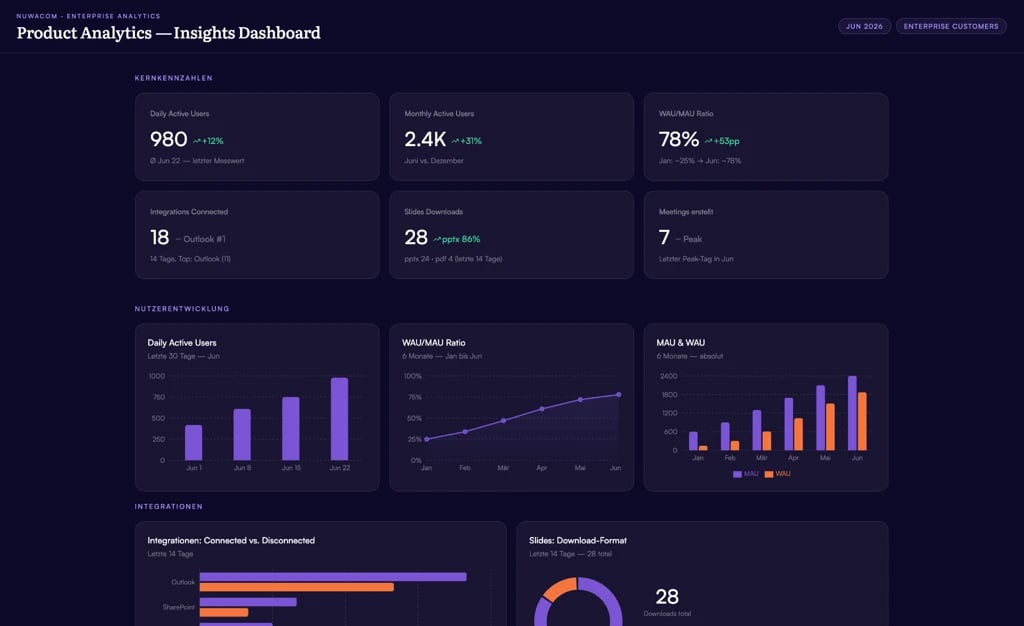 | Category | Examples |
| ----------------------------- | ------------------------------------------------------------ |
| **Dashboards & reports** | KPI overviews, revenue/signups/conversion, order tracking |
| **Tools & calculators** | Configurators, pricing calculators, internal helpers |
| **Forms & intake** | Support intake, settings panels, filters, file uploads |
| **Boards & maps** | Strategy, process, customer, or journey views |
| **Infographics & explainers** | Architecture/system overviews, landing-style pages |
| **Charts** | Focused single-dataset visualizations |
| **Knowledge explorers** | Searchable interfaces over your knowledge base |
| **Games & animations** | Small interactive experiences, New animations, and 3D scenes |
## **Branding and Styling**
The system allows the integration of custom design standards and visual assets during the creation process. This supports several key use cases:
* **Landing pages**: Creating custom pages with tailored visuals and consistent brand styling.
* **Campaign pages**: Generating pages from a design brief with product screenshots and approved images.
* **Sales tools**: Developing proposal configurators and company-branded microsites.
* **Interactive dashboards**: Turning presentations, concept documents, or image sets into interactive dashboards.
* **Internal tools**: Creating tools with correct logos, illustrations, and visual style from the start.
* **Event and launch pages**: Building event pages, product launch pages, or executive demos with a strong design standard.
## What Apps Can Do
Beyond appearance, apps perform real tasks. Everything below works without writing any code and is requested in chat. All access runs securely through the Nuwacom platform, so apps never handle credentials and can never reach the internet directly.
### Work with your data
* **Read workspace data**: knowledge base files, projects, agents, and content serve as live data sources.
* **Connect business tools**: live data from connected tools such as CRM, calendar, email, and Slack appears inside the app.
* **Connect MCP servers directly**: an app binds straight to a tool on an MCP server as a live data source, with no agent in between. Depending on the tool, this can read data and also perform actions (read/write).
* **Search the web**: current external information such as weather, news, prices, and look-ups is pulled in through the platform's built-in web search.
### Take action
* **Send emails and messages**: apps trigger real actions in connected tools, for example sending an email (Outlook, Gmail) or posting a Slack message. These run under each person's own connected account and are available to people with **edit** access to the app.
* **Create and update records**: any action a connected tool or MCP server offers can be wired in, for example creating a ticket, updating a deal, or adding a calendar event.
### Use AI inside the app
* Generate and summarize text, extract structured data into a defined shape, and run a configured Nuwacom agent from within the app.
* **Images:** generate, edit, and analyze images (vision).
### Save and export
* **Remember app state**: lightweight state such as a selected tab, a draft, a preference, or a score is saved so it survives a reload. State is per-app and per-person, stored in the browser, and does not sync across devices.
* **Save files to your knowledge base**: a file, image, or export such as a generated report in Markdown or JSON is saved into the workspace knowledge base, up to 25 MB per file.
* **Export**: the whole app downloads as a codebase ZIP or exports to PDF.
### Look and feel
* **Rich visuals**: charts and data visualizations, maps, 3D scenes, animations, and drag-and-drop interactions.
* **Sounds**: apps play sounds and audio feedback, for example a timer chime or a click. Sounds are generated or embedded in the app.
Apps do not run their own server or shared database. They save lightweight state in the browser and files to the knowledge base, but there is no always-on backend storing records for everyone. For shared, structured data, connect a tool or an MCP server as a data source instead.
## What Apps Can't do
* **No direct internet access**: apps cannot call external websites or APIs directly and cannot embed third-party widgets. All external data goes through the platform, either web search or connected integrations.
* **No shared or central database**: there is no always-on backend that stores records for all users. Connected tools or MCP servers cover shared, structured data.
* **Browser-only state**: saved app state lives in one browser, per person. It is not shared between users and does not sync across devices, so it serves convenience rather than important records.
* **Audio limits**: apps play generated or embedded sounds, but cannot stream audio from an external website and cannot use the microphone.
* **No camera or microphone capture**: apps cannot record from a camera or microphone.
* **Actions need edit access**: sending emails or messages and other write actions require edit access to the app. Read-only viewers can view data but cannot trigger actions.
* **No credentials or model choice**: apps never handle API keys, and a specific AI model cannot be selected. The platform manages both.
* **Login always required**: apps have no public or anonymous link. Every user must be a logged-in workspace member.
* **Fair-use limits apply**: see **Usage limits (fair use)** below.
## Apps Overview
Opening Apps from the sidebar shows the central overview of every app available in the workspace. The *+ New App* button in the top-right corner starts a new build.
Each app summarizes and exposes its main controls:
* **Initials badge**: a two-letter avatar in a colored circle, for example "CS" for Customer Success Cockpit.
* **App name**: the bold title that identifies the app.
* **Star icon**: marks the app as a favorite for quicker access.
* **Description**: two to three lines of truncated text describing what the app does.
* **Workspace label**: indicates that the app belongs to the workspace.
* **Three-dot menu**: opens actions for the app, including Pin to sidebar, Edit, Rename, Duplicate, Share, and Delete (shown in red).
### Filtering, Searching, and Sorting
The overview provides three controls to narrow down the grid. They combine, so a search term and a sort order apply within the selected tab.
### Tab filter
Three tabs control which apps appear:
* **All**: every app in the workspace, which is the default selection.
* **My apps:** only apps created by the current user.
* **Shared with me**: only apps that other users have shared with the current account.
### Search bar
The search field filters the grid by app name as characters are entered. Search applies within the active tab, so a term entered under *Shared with me* searches only shared apps.
### Sort menu
The *Recently Used* control on the far right opens the sort menu, which reorders the grid by one of the following criteria:
* Recently Used
* Most Used
* Recently Created
* Recently Updated
* Alphabetically
## How It Works
1. **Open Apps and click +New App**: start a new build from the Apps overview.
2. **Describe**: for example, "Build a dashboard with our project numbers" or "A weather app for Berlin".
3. **Watch**: the app is generated and appears live in the preview on the right.
4. **Refine**: content, layout, colors, and features are adjusted through chat until the app is right.
## **The App Workspace**
Opening an app shows a split view: the app canvas on the right and an optional chat sidebar on the left for AI-assisted editing. The canvas offers these views:
| **View** | **What it shows** |
| ---------------- | ----------------------------------------------------------------- |
| **Preview** | The live, interactive app: click through it like a real app |
| **Code** | The generated source files in a read-only editor with a file tree |
| **Sources** | Files and content connected to the app as data |
| **Integrations** | Actions from connected business tools (e.g. Outlook, Slack) |
Read-only viewers see only the running Preview; all editing controls are hidden.
### **Preview**
The app runs live and is fully interactive (forms, buttons, navigation). Internal links navigate within the app; external links open in a new browser tab. The app can be expanded to fullscreen. The preview refreshes automatically when data sources or versions change.
### **Code**
A read-only view of the app's source, with a browsable file tree and syntax highlighting. From here, you can perform the following actions:
* **Copy** Copy a file's contents directly to the clipboard.
* **Download file** Download a single file from the codebase.
* **Download codebase** Download the entire codebase as a ZIP archive.
* **Reference in chat** Reference a specific file in chat to guide the AI when requesting targeted changes.
## **Connecting Your Data**
Apps do not just show static content; they connect to live data, managed visually in the canvas:
* **Sources**: attach files or content from the knowledge base as runtime data. After a source is added, an optional "smart apply" step describes how it should be used, and the AI wires it in.
* **Integrations**: connect specific actions from business tools such as CRM, calendar, email, and chat. The action is selected, parameters are configured, a connection is chosen, and the setup is tested before saving.
* **MCP servers**: bind directly to a tool on an MCP server as a live data source, without an agent in between. This reads data and, where the tool supports it, writes.
Credentials are never entered directly within an app. The platform securely brokers all access. **In shared apps, each user connects and uses their own accounts; connections are never shared between users.**
## **AI Capabilities**
Apps use AI directly, including:
* Text generation and summarization.
* Structured data extraction that returns results in a defined shape.
* Running a configured agent from inside the app for multi-step or reasoning tasks.
* Image generation, editing, and analysis (vision).
AI actions are subject to the fair-use limit of 30 per minute (see Usage limits (fair use)). The model is not selected or paid per use; the platform picks an appropriate model.
## **Live and External Data**
Apps can pull in current web information (weather, news, prices, look-ups) through the platform's built-in web search. All external data is routed securely through nuwacom; apps cannot call arbitrary external services directly.
## **Usage Limits (Fair Use)**
To maintain platform stability and performance, each app is subject to built-in fair-use request limits. These limits prevent individual apps from overloading the system (for example, due to infinite loops) and are identical across all subscription plans and trials.
* **Short-burst limit** — Apps can send a rapid burst of up to **20 requests** simultaneously, after which they continue at a steady rate of approximately **10 requests per second**. This is sufficient for standard navigation but may be briefly exceeded by data-heavy screens (e.g., a dashboard loading dozens of metrics at once), resulting in a temporary "rate limit exceeded" message.
* **AI limit** — AI-driven actions (such as text generation, summarization, or image analysis) are capped at **30 requests per minute** to prevent runaway loops and unexpected costs.
| Limit | Value |
| --------------------------- | ---------------------------- |
| Short burst | up to 20 requests at once |
| Steady rate after the burst | about 10 requests per second |
| AI actions | 30 per minute |
## **Handling Rate Limit Messages**
* **Reload the app** The limit clears within a second or two, so a reload usually resolves the issue.
* **Reduce initial load** If the message persists, the app may be loading too much data at once. Instruct the AI in chat to load data in smaller steps, show fewer items initially, or load details only upon clicking.
## **Iterating and Editing**
Editing is conversational. The AI makes precise, targeted edits rather than rebuilding the entire app. Users can choose between two build quality tiers:
* **Standard** Faster and more cost-efficient.
* **High** Higher quality for complex work.
## **Versions and History**
Every change accumulates as a version snapshot. From the canvas, you can manage versions using these features:
* **Open version history** Access the version history navigator from the canvas.
* **Navigate versions** Step back and forward through previous version snapshots.
* **Restore versions** Restore an earlier version as the active, live app.
Historical versions are read-only snapshots; live data connections are inactive during preview.
## **Saved State**
Apps have three ways to keep data, and the differences matter:
* **App state (in the browser)**: lightweight state such as a selected tab, a draft, a preference, or a small score that survives a reload. It is per-app and per-person, stored in the browser. It is not shared with other users and does not sync across devices.
* **Files in the knowledge base**: apps save a file, image, or export into the workspace knowledge base (up to 25 MB per file), where it becomes a normal knowledge base asset for reuse elsewhere.
* **Live data from connected sources**: for shared, always-current, structured data, apps read from the knowledge base, connected tools, or MCP servers rather than storing it themselves.
There is no built-in shared app database: apps do not run an always-on backend that stores records for everyone. When that is needed, connect a tool or MCP server as a data source.
## **Sharing and Permissions**
The app and the chat are shared separately, each via its own Share button. Sharing one does not share the other.
Apps are shared from the Share dialog, where you can perform these actions:
* **Add individual users or groups** Grant access to specific team members or departments.
* **Grant Read or Edit access** Configure permissions (new users default to Read access).
* **Share with all workspace users** Make the app accessible to the entire workspace (subject to role permissions).
* **Copy a link** Generate a 7-day invite link for logged-in workspace members.
Sharing an app shares the finished app, not the building conversation. If the chat is shared, recipients can read the full message history in a read-only format.
### **Privacy Warning for Connected Accounts**
Shared apps never share credentials or connections. When an app uses private connected accounts, each recipient uses their **own** connected account.
The first time a viewer opens a shared app requiring an unlinked connection, a prompt appears to connect an account. If they do not connect, the affected part of the app remains unresolved.
### **Who Can Build vs. View**
| **Capability** | **Editor** | **Read-only viewer** |
| ---------------------------------------------- | ---------- | -------------------- |
| Run the app (Preview) | Yes | Yes |
| Preview / Code / Sources / Integrations toggle | Yes | Preview only |
| Edit via AI chat | Yes | No |
| Add/remove data sources and integrations | Yes | Preview only |
| Download codebase | Yes | No |
| Share | Yes | Hidden |
| Delete | Yes | Hidden |
## **Accessing and Running Apps**
* **Apps list** Find, search, open, rename, share, move, and delete apps from the Apps area in the sidebar.
* **Dedicated app page** Each app has its own full-page view combining the live app and an editing chat sidebar.
* **In chat** Apps appear as preview tiles; click to open the full canvas.
Apps run inside nuwacom in a secure, sandboxed environment via a short-lived authenticated session. Access always requires a logged-in workspace member.
## **Export and Download**
* **Download codebase** ZIP of all source files, available from the Code view.
* **Download as PDF** Available from the app's "more" menu.
## **Security and Sandboxing**
Apps are built to be safe even though they run real, interactive code:
* **Isolated execution** Each app runs in a sandboxed frame on its own isolated address, separated from the main platform and other apps.
* **No uncontrolled data egress** Apps cannot make direct calls to arbitrary external services, and other data-leak channels are locked down.
* **Controlled, secure data access** Apps access workspace data, AI, and connected tools only through a controlled platform bridge.
* **No credential exposure** Apps never see authentication tokens or credentials; the platform brokers every connection.
* **Per-user connected accounts** Shared apps use each viewer's own connections.
## **Good to Know / Current Limitations**
* **No element-level visual editing** Changes are made through chat rather than drag-and-drop or click-to-style controls.
* **No manual preview reload button** The preview refreshes automatically when changes are applied.
* **No public or anonymous URLs** Access always requires a logged-in workspace member.
* **Title rename location** Renaming is performed from the Apps list, not the canvas header.
* **Automatic version snapshots** Snapshots are created automatically from edits; there is no manual save button.
* **Client-side execution** Apps run client-side only and cannot call external services directly.
* **Fair-use request limits** Apps are subject to built-in request limits to maintain platform stability.
## **Example Prompts**
* *“Create a KPI dashboard with revenue, new customers, and conversion.”*
* *“Build a support intake form with file upload.”*
* *“Show our projects as a board grouped by status.”*
* *“Create an infographic of our system architecture.”*
* *“Add a dark mode toggle to the header.”*
## **FAQ**
It depends on **what** you share, because the app and the chat are shared separately:
* **If you share the app** (Share button on the app): recipients get only the finished, running app. They do **not** see the chat you used to build it, and read-only viewers can't open the editing chat at all.
* **If you share the chat** (Share button on the conversation): recipients can open the conversation and read the **full message history**. It is read-only for them (they can't send messages), but they do see what was written. Only share the chat when you actually want to show how the app was built.
Yes. Editing continues through chat, and people with access see the updated app.
No. For security, apps cannot make direct external calls. Live or external data is provided through the platform (built-in web search) or through connected integrations.
No. The platform securely brokers all data and tool access; apps never handle credentials.
No. Read-only users can run and interact with the app, but editing, data-source changes, downloading the code, sharing, and deleting are restricted to editors.
Each person uses their own. When an app relies on an integration, recipients are prompted to connect or select their own account.
It is a built-in fair-use limit on the number of requests an app can send in a short burst. It usually appears when a data-heavy app loads a lot of data at once. Reloading the app or instructing the AI to load data in smaller steps resolves the issue.
| Category | Examples |
| ----------------------------- | ------------------------------------------------------------ |
| **Dashboards & reports** | KPI overviews, revenue/signups/conversion, order tracking |
| **Tools & calculators** | Configurators, pricing calculators, internal helpers |
| **Forms & intake** | Support intake, settings panels, filters, file uploads |
| **Boards & maps** | Strategy, process, customer, or journey views |
| **Infographics & explainers** | Architecture/system overviews, landing-style pages |
| **Charts** | Focused single-dataset visualizations |
| **Knowledge explorers** | Searchable interfaces over your knowledge base |
| **Games & animations** | Small interactive experiences, New animations, and 3D scenes |
## **Branding and Styling**
The system allows the integration of custom design standards and visual assets during the creation process. This supports several key use cases:
* **Landing pages**: Creating custom pages with tailored visuals and consistent brand styling.
* **Campaign pages**: Generating pages from a design brief with product screenshots and approved images.
* **Sales tools**: Developing proposal configurators and company-branded microsites.
* **Interactive dashboards**: Turning presentations, concept documents, or image sets into interactive dashboards.
* **Internal tools**: Creating tools with correct logos, illustrations, and visual style from the start.
* **Event and launch pages**: Building event pages, product launch pages, or executive demos with a strong design standard.
## What Apps Can Do
Beyond appearance, apps perform real tasks. Everything below works without writing any code and is requested in chat. All access runs securely through the Nuwacom platform, so apps never handle credentials and can never reach the internet directly.
### Work with your data
* **Read workspace data**: knowledge base files, projects, agents, and content serve as live data sources.
* **Connect business tools**: live data from connected tools such as CRM, calendar, email, and Slack appears inside the app.
* **Connect MCP servers directly**: an app binds straight to a tool on an MCP server as a live data source, with no agent in between. Depending on the tool, this can read data and also perform actions (read/write).
* **Search the web**: current external information such as weather, news, prices, and look-ups is pulled in through the platform's built-in web search.
### Take action
* **Send emails and messages**: apps trigger real actions in connected tools, for example sending an email (Outlook, Gmail) or posting a Slack message. These run under each person's own connected account and are available to people with **edit** access to the app.
* **Create and update records**: any action a connected tool or MCP server offers can be wired in, for example creating a ticket, updating a deal, or adding a calendar event.
### Use AI inside the app
* Generate and summarize text, extract structured data into a defined shape, and run a configured Nuwacom agent from within the app.
* **Images:** generate, edit, and analyze images (vision).
### Save and export
* **Remember app state**: lightweight state such as a selected tab, a draft, a preference, or a score is saved so it survives a reload. State is per-app and per-person, stored in the browser, and does not sync across devices.
* **Save files to your knowledge base**: a file, image, or export such as a generated report in Markdown or JSON is saved into the workspace knowledge base, up to 25 MB per file.
* **Export**: the whole app downloads as a codebase ZIP or exports to PDF.
### Look and feel
* **Rich visuals**: charts and data visualizations, maps, 3D scenes, animations, and drag-and-drop interactions.
* **Sounds**: apps play sounds and audio feedback, for example a timer chime or a click. Sounds are generated or embedded in the app.
Apps do not run their own server or shared database. They save lightweight state in the browser and files to the knowledge base, but there is no always-on backend storing records for everyone. For shared, structured data, connect a tool or an MCP server as a data source instead.
## What Apps Can't do
* **No direct internet access**: apps cannot call external websites or APIs directly and cannot embed third-party widgets. All external data goes through the platform, either web search or connected integrations.
* **No shared or central database**: there is no always-on backend that stores records for all users. Connected tools or MCP servers cover shared, structured data.
* **Browser-only state**: saved app state lives in one browser, per person. It is not shared between users and does not sync across devices, so it serves convenience rather than important records.
* **Audio limits**: apps play generated or embedded sounds, but cannot stream audio from an external website and cannot use the microphone.
* **No camera or microphone capture**: apps cannot record from a camera or microphone.
* **Actions need edit access**: sending emails or messages and other write actions require edit access to the app. Read-only viewers can view data but cannot trigger actions.
* **No credentials or model choice**: apps never handle API keys, and a specific AI model cannot be selected. The platform manages both.
* **Login always required**: apps have no public or anonymous link. Every user must be a logged-in workspace member.
* **Fair-use limits apply**: see **Usage limits (fair use)** below.
## Apps Overview
Opening Apps from the sidebar shows the central overview of every app available in the workspace. The *+ New App* button in the top-right corner starts a new build.
Each app summarizes and exposes its main controls:
* **Initials badge**: a two-letter avatar in a colored circle, for example "CS" for Customer Success Cockpit.
* **App name**: the bold title that identifies the app.
* **Star icon**: marks the app as a favorite for quicker access.
* **Description**: two to three lines of truncated text describing what the app does.
* **Workspace label**: indicates that the app belongs to the workspace.
* **Three-dot menu**: opens actions for the app, including Pin to sidebar, Edit, Rename, Duplicate, Share, and Delete (shown in red).
### Filtering, Searching, and Sorting
The overview provides three controls to narrow down the grid. They combine, so a search term and a sort order apply within the selected tab.
### Tab filter
Three tabs control which apps appear:
* **All**: every app in the workspace, which is the default selection.
* **My apps:** only apps created by the current user.
* **Shared with me**: only apps that other users have shared with the current account.
### Search bar
The search field filters the grid by app name as characters are entered. Search applies within the active tab, so a term entered under *Shared with me* searches only shared apps.
### Sort menu
The *Recently Used* control on the far right opens the sort menu, which reorders the grid by one of the following criteria:
* Recently Used
* Most Used
* Recently Created
* Recently Updated
* Alphabetically
## How It Works
1. **Open Apps and click +New App**: start a new build from the Apps overview.
2. **Describe**: for example, "Build a dashboard with our project numbers" or "A weather app for Berlin".
3. **Watch**: the app is generated and appears live in the preview on the right.
4. **Refine**: content, layout, colors, and features are adjusted through chat until the app is right.
## **The App Workspace**
Opening an app shows a split view: the app canvas on the right and an optional chat sidebar on the left for AI-assisted editing. The canvas offers these views:
| **View** | **What it shows** |
| ---------------- | ----------------------------------------------------------------- |
| **Preview** | The live, interactive app: click through it like a real app |
| **Code** | The generated source files in a read-only editor with a file tree |
| **Sources** | Files and content connected to the app as data |
| **Integrations** | Actions from connected business tools (e.g. Outlook, Slack) |
Read-only viewers see only the running Preview; all editing controls are hidden.
### **Preview**
The app runs live and is fully interactive (forms, buttons, navigation). Internal links navigate within the app; external links open in a new browser tab. The app can be expanded to fullscreen. The preview refreshes automatically when data sources or versions change.
### **Code**
A read-only view of the app's source, with a browsable file tree and syntax highlighting. From here, you can perform the following actions:
* **Copy** Copy a file's contents directly to the clipboard.
* **Download file** Download a single file from the codebase.
* **Download codebase** Download the entire codebase as a ZIP archive.
* **Reference in chat** Reference a specific file in chat to guide the AI when requesting targeted changes.
## **Connecting Your Data**
Apps do not just show static content; they connect to live data, managed visually in the canvas:
* **Sources**: attach files or content from the knowledge base as runtime data. After a source is added, an optional "smart apply" step describes how it should be used, and the AI wires it in.
* **Integrations**: connect specific actions from business tools such as CRM, calendar, email, and chat. The action is selected, parameters are configured, a connection is chosen, and the setup is tested before saving.
* **MCP servers**: bind directly to a tool on an MCP server as a live data source, without an agent in between. This reads data and, where the tool supports it, writes.
Credentials are never entered directly within an app. The platform securely brokers all access. **In shared apps, each user connects and uses their own accounts; connections are never shared between users.**
## **AI Capabilities**
Apps use AI directly, including:
* Text generation and summarization.
* Structured data extraction that returns results in a defined shape.
* Running a configured agent from inside the app for multi-step or reasoning tasks.
* Image generation, editing, and analysis (vision).
AI actions are subject to the fair-use limit of 30 per minute (see Usage limits (fair use)). The model is not selected or paid per use; the platform picks an appropriate model.
## **Live and External Data**
Apps can pull in current web information (weather, news, prices, look-ups) through the platform's built-in web search. All external data is routed securely through nuwacom; apps cannot call arbitrary external services directly.
## **Usage Limits (Fair Use)**
To maintain platform stability and performance, each app is subject to built-in fair-use request limits. These limits prevent individual apps from overloading the system (for example, due to infinite loops) and are identical across all subscription plans and trials.
* **Short-burst limit** — Apps can send a rapid burst of up to **20 requests** simultaneously, after which they continue at a steady rate of approximately **10 requests per second**. This is sufficient for standard navigation but may be briefly exceeded by data-heavy screens (e.g., a dashboard loading dozens of metrics at once), resulting in a temporary "rate limit exceeded" message.
* **AI limit** — AI-driven actions (such as text generation, summarization, or image analysis) are capped at **30 requests per minute** to prevent runaway loops and unexpected costs.
| Limit | Value |
| --------------------------- | ---------------------------- |
| Short burst | up to 20 requests at once |
| Steady rate after the burst | about 10 requests per second |
| AI actions | 30 per minute |
## **Handling Rate Limit Messages**
* **Reload the app** The limit clears within a second or two, so a reload usually resolves the issue.
* **Reduce initial load** If the message persists, the app may be loading too much data at once. Instruct the AI in chat to load data in smaller steps, show fewer items initially, or load details only upon clicking.
## **Iterating and Editing**
Editing is conversational. The AI makes precise, targeted edits rather than rebuilding the entire app. Users can choose between two build quality tiers:
* **Standard** Faster and more cost-efficient.
* **High** Higher quality for complex work.
## **Versions and History**
Every change accumulates as a version snapshot. From the canvas, you can manage versions using these features:
* **Open version history** Access the version history navigator from the canvas.
* **Navigate versions** Step back and forward through previous version snapshots.
* **Restore versions** Restore an earlier version as the active, live app.
Historical versions are read-only snapshots; live data connections are inactive during preview.
## **Saved State**
Apps have three ways to keep data, and the differences matter:
* **App state (in the browser)**: lightweight state such as a selected tab, a draft, a preference, or a small score that survives a reload. It is per-app and per-person, stored in the browser. It is not shared with other users and does not sync across devices.
* **Files in the knowledge base**: apps save a file, image, or export into the workspace knowledge base (up to 25 MB per file), where it becomes a normal knowledge base asset for reuse elsewhere.
* **Live data from connected sources**: for shared, always-current, structured data, apps read from the knowledge base, connected tools, or MCP servers rather than storing it themselves.
There is no built-in shared app database: apps do not run an always-on backend that stores records for everyone. When that is needed, connect a tool or MCP server as a data source.
## **Sharing and Permissions**
The app and the chat are shared separately, each via its own Share button. Sharing one does not share the other.
Apps are shared from the Share dialog, where you can perform these actions:
* **Add individual users or groups** Grant access to specific team members or departments.
* **Grant Read or Edit access** Configure permissions (new users default to Read access).
* **Share with all workspace users** Make the app accessible to the entire workspace (subject to role permissions).
* **Copy a link** Generate a 7-day invite link for logged-in workspace members.
Sharing an app shares the finished app, not the building conversation. If the chat is shared, recipients can read the full message history in a read-only format.
### **Privacy Warning for Connected Accounts**
Shared apps never share credentials or connections. When an app uses private connected accounts, each recipient uses their **own** connected account.
The first time a viewer opens a shared app requiring an unlinked connection, a prompt appears to connect an account. If they do not connect, the affected part of the app remains unresolved.
### **Who Can Build vs. View**
| **Capability** | **Editor** | **Read-only viewer** |
| ---------------------------------------------- | ---------- | -------------------- |
| Run the app (Preview) | Yes | Yes |
| Preview / Code / Sources / Integrations toggle | Yes | Preview only |
| Edit via AI chat | Yes | No |
| Add/remove data sources and integrations | Yes | Preview only |
| Download codebase | Yes | No |
| Share | Yes | Hidden |
| Delete | Yes | Hidden |
## **Accessing and Running Apps**
* **Apps list** Find, search, open, rename, share, move, and delete apps from the Apps area in the sidebar.
* **Dedicated app page** Each app has its own full-page view combining the live app and an editing chat sidebar.
* **In chat** Apps appear as preview tiles; click to open the full canvas.
Apps run inside nuwacom in a secure, sandboxed environment via a short-lived authenticated session. Access always requires a logged-in workspace member.
## **Export and Download**
* **Download codebase** ZIP of all source files, available from the Code view.
* **Download as PDF** Available from the app's "more" menu.
## **Security and Sandboxing**
Apps are built to be safe even though they run real, interactive code:
* **Isolated execution** Each app runs in a sandboxed frame on its own isolated address, separated from the main platform and other apps.
* **No uncontrolled data egress** Apps cannot make direct calls to arbitrary external services, and other data-leak channels are locked down.
* **Controlled, secure data access** Apps access workspace data, AI, and connected tools only through a controlled platform bridge.
* **No credential exposure** Apps never see authentication tokens or credentials; the platform brokers every connection.
* **Per-user connected accounts** Shared apps use each viewer's own connections.
## **Good to Know / Current Limitations**
* **No element-level visual editing** Changes are made through chat rather than drag-and-drop or click-to-style controls.
* **No manual preview reload button** The preview refreshes automatically when changes are applied.
* **No public or anonymous URLs** Access always requires a logged-in workspace member.
* **Title rename location** Renaming is performed from the Apps list, not the canvas header.
* **Automatic version snapshots** Snapshots are created automatically from edits; there is no manual save button.
* **Client-side execution** Apps run client-side only and cannot call external services directly.
* **Fair-use request limits** Apps are subject to built-in request limits to maintain platform stability.
## **Example Prompts**
* *“Create a KPI dashboard with revenue, new customers, and conversion.”*
* *“Build a support intake form with file upload.”*
* *“Show our projects as a board grouped by status.”*
* *“Create an infographic of our system architecture.”*
* *“Add a dark mode toggle to the header.”*
## **FAQ**
It depends on **what** you share, because the app and the chat are shared separately:
* **If you share the app** (Share button on the app): recipients get only the finished, running app. They do **not** see the chat you used to build it, and read-only viewers can't open the editing chat at all.
* **If you share the chat** (Share button on the conversation): recipients can open the conversation and read the **full message history**. It is read-only for them (they can't send messages), but they do see what was written. Only share the chat when you actually want to show how the app was built.
Yes. Editing continues through chat, and people with access see the updated app.
No. For security, apps cannot make direct external calls. Live or external data is provided through the platform (built-in web search) or through connected integrations.
No. The platform securely brokers all data and tool access; apps never handle credentials.
No. Read-only users can run and interact with the app, but editing, data-source changes, downloading the code, sharing, and deleting are restricted to editors.
Each person uses their own. When an app relies on an integration, recipients are prompted to connect or select their own account.
It is a built-in fair-use limit on the number of requests an app can send in a short burst. It usually appears when a data-heavy app loads a lot of data at once. Reloading the app or instructing the AI to load data in smaller steps resolves the issue.